


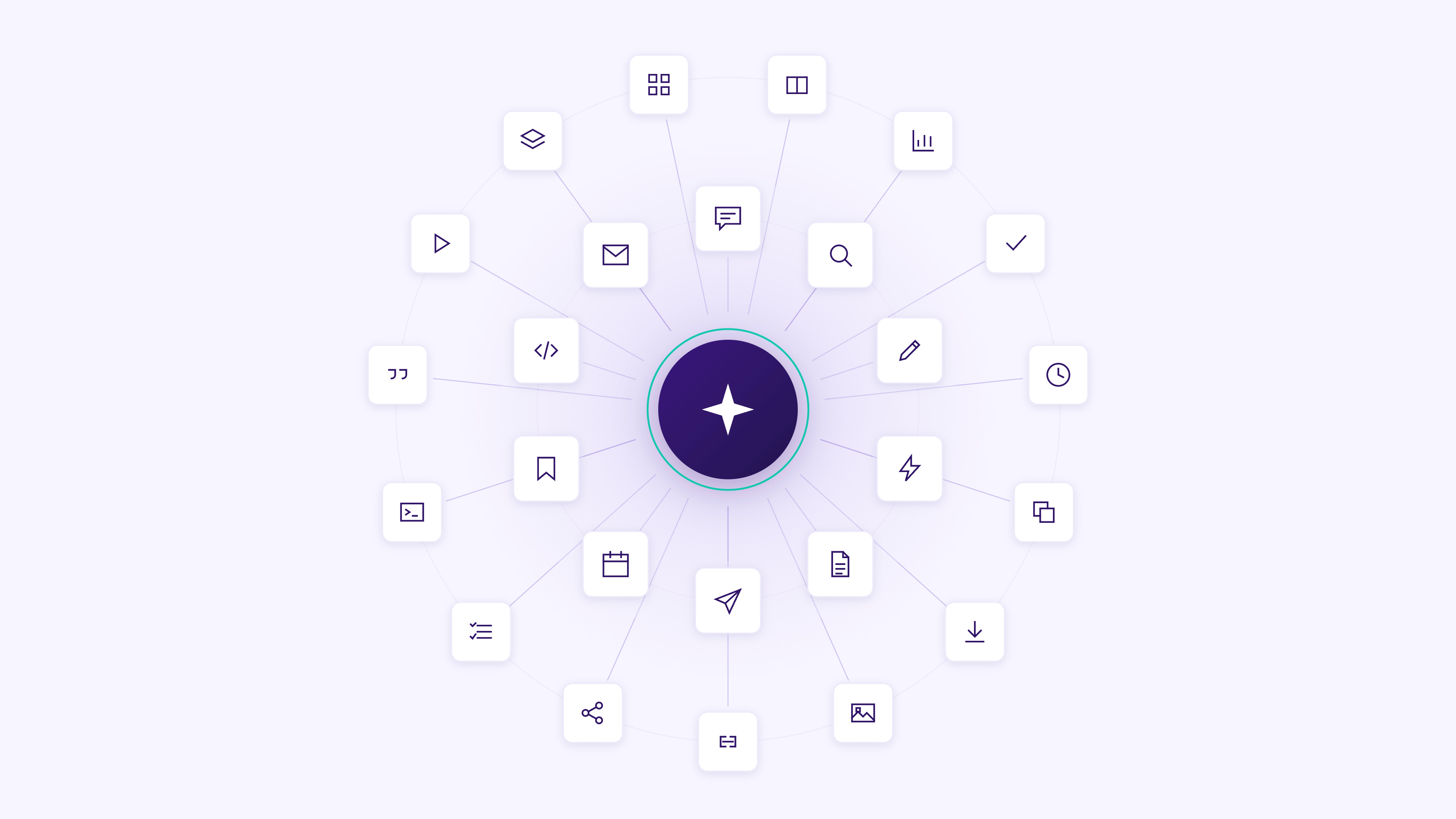
Most people use Claude like a chatbot. That’s a mistake.
Most people use Claude like a prettier search bar. They open a chat, ask one question, get one answer, and then wonder why AI still feels slightly underwhelming.
That is not Claude’s fault. That is like buying a full commercial kitchen and only using the toaster. Cute, but we can do better.
Claude is not just a place to ask questions. It can help you think, write, research, code, build documents, make spreadsheets, create decks, test ideas, organize work, automate repeat tasks, connect to tools, and turn your messy brain into a cleaner system.
The trick is knowing which version of Claude you need for the job. Sometimes you need a fast assistant. Sometimes you need a deep thinker. Sometimes you need a researcher, coder, designer, spreadsheet analyst, or project manager.
That is the whole point of this guide.
Claude has grown way beyond basic chat. Anthropic now documents features like Projects, Artifacts, Web Search, Research, Skills, Connectors, Plugins, Claude Cowork, Claude Code, Claude for Excel, Claude for PowerPoint, Claude Design, and more. Some features depend on your plan, workspace, and beta access, so always check what is available inside your own Claude account before building a workflow around it.
Model names also change fast, which is why I do not want you obsessing over one perfect model forever. As of this writing, Anthropic lists Claude Opus 4.8 for coding, agentic tasks, and professional work, while Claude Sonnet 4.6 is positioned for coding, computer use, long-context reasoning, agent planning, knowledge work, and design. Translation: use the strongest model for serious thinking and the faster model for everyday work.
Let’s make Claude actually useful.
The Better Way to Think About Claude
Claude is not one tool. It is a stack of work modes.
There is Claude for thinking, where you use it to reason through decisions, explain ideas, and challenge your assumptions. There is Claude for making, where you use it to create documents, spreadsheets, presentations, prototypes, designs, code, and dashboards. There is Claude for connecting, where it pulls context from tools like email, calendars, drives, and other apps. Then there is Claude for remembering, where Projects, instructions, skills, and files help it understand how you work over time.
That is the upgrade. Stop asking, “What can Claude answer?” Start asking, “What kind of work do I need Claude to help me do?”
That one shift changes everything.
1. Use Claude as a Better Chat Partner
Basic chat is still useful, but only when you stop asking lazy questions. “Help me with marketing” is not a prompt. It is a cry for help in a trench coat.
Use Claude chat when you need to untangle an idea, draft something quickly, ask for suggestions, or talk through a problem. The key is to give it context, stakes, and a clear job.
Try this:
I want to think through this problem: [describe problem].

Ask me 5 questions first so you understand the context, goal, constraints, and what I have already tried.

After I answer, help me find the clearest next step.
This makes Claude interview you before it answers. That matters because most bad AI output happens because the tool guessed instead of asking.
2. Use Claude as a Deep Thinker
Sometimes you do not need speed. You need better thinking.
Use Claude’s strongest available model when the task involves strategy, judgment, complex tradeoffs, hard decisions, long documents, or anything where a shallow answer could cost you. This is where Claude can feel less like a chatbot and more like a thinking partner.
Try this:
Think through this carefully before answering.

I am deciding between: [option A] and [option B].

My goal is: [goal].
My constraints are: [constraints].
The stakes are: [stakes].

Compare the options, explain the tradeoffs, identify hidden risks, and give me a clear recommendation.
This is not for “write a caption.” This is for real decisions. Use the big brain when the work deserves it.
3. Use Claude as a Fast Assistant
Not every task needs deep reasoning. Sometimes you need a quick rewrite, summary, checklist, outline, or answer.
For that, use the faster model available in Claude. Save the heavy model for harder work. This keeps your workflow moving and helps you avoid burning premium capacity on tiny tasks.
Try this:
Answer quickly and practically.

Task: [insert task]

Constraints:
- Keep it under 150 words
- No preamble
- No generic advice
- Give me the usable version first
This is great for emails, captions, quick summaries, simple lists, and “I need this cleaned up now” moments.
4. Use Claude for Careful Reasoning
Extended thinking is for problems where Claude needs more room to reason before responding. Anthropic describes extended thinking as giving Claude enhanced reasoning capabilities for complex tasks, with varying transparency into the reasoning process before the final answer.
Use this for business decisions, technical planning, finance scenarios, market analysis, strategy, and any question with multiple moving parts.
Try this:
Use careful reasoning for this.

Problem: [describe problem]

Before recommending anything, identify:
1. What we know
2. What we are assuming
3. What is uncertain
4. What could go wrong
5. What decision I need to make

Then give me the best recommendation based on the current information.
Do not ask Claude to be dramatic. Ask it to be careful. Different energy, much better results.
5. Use Claude Cowork for Real Work, Not Just Replies
Claude Cowork is where Claude starts feeling less like a chat tool and more like a work partner. Anthropic says Cowork can take an outcome, step away from chat, and come back with finished work like formatted documents, organized files, synthesized research, spreadsheets, presentations, and long-running tasks.
Use Cowork when the task has multiple steps, files, research, formatting, or deliverables. Do not use it for tiny one-off prompts. That is not the point.
Try this:
I want you to help me complete this work product: [describe final deliverable].

The final result should include: [list deliverables].

Use the files and context I provide. Create a plan first, ask me any missing questions, then complete the work in stages so I can review each major decision.
Cowork is powerful, but be careful with sensitive files. Agentic tools can make real changes, so keep your guardrails tight.
6. Use Claude Code to Build and Fix Things
Claude Code is for people building software, websites, automations, internal tools, scripts, and technical systems. Anthropic’s Agent SDK documentation says it can power agents that read files, run commands, search the web, edit code, and use the same tool loop behind Claude Code.
You do not need to be a senior developer to benefit from this. You do need enough judgment to review what it changes. AI coding without review is how bugs get dressed up as progress.
Try this:
Review this codebase or file and help me improve it.

Goal: [what I want the code to do]
Current issue: [bug, feature, error, or improvement]
Constraints: [language, framework, style, dependencies]

First explain what you think is happening. Then propose the smallest safe change. Do not rewrite more than necessary.
This is how you use Claude Code responsibly. Small changes. Clear goals. Review everything.
7. Use Claude for Excel and Data Modeling
Claude can now work with files and create documents like Excel spreadsheets, PowerPoint presentations, Word documents, and PDFs directly in conversations, according to Anthropic’s file creation documentation.
This is huge for entrepreneurs, operators, creators, and anyone who quietly fears spreadsheets. Claude can help build models, clean data, summarize trends, create formulas, and make your numbers less rude.
Try this:
Help me build a spreadsheet model for: [goal].

I need it to include:
- Input assumptions
- Revenue or cost calculations
- Scenario tabs
- Clear formulas
- A summary dashboard

Ask me for the numbers you need before creating the model.
Use Claude for structure, formulas, and scenario thinking. Then check the math. Always check the math.
8. Use Claude for Slides and Presentations
Claude can help you turn ideas into presentations, not just write random bullets. This is especially useful for pitch decks, workshops, team updates, sales calls, webinars, course lessons, and executive summaries.
The mistake is asking for “a deck.” That gets you generic slides. Instead, tell Claude the audience, purpose, decision, emotional arc, and what the deck needs to make people believe.
Try this:
Help me create a presentation about: [topic].

Audience: [who will see it]
Goal: [what I want them to understand, decide, or do]
Tone: [clear, persuasive, premium, educational, etc.]
Length: [number of slides]

Create a slide-by-slide outline with the purpose of each slide, suggested title, key points, visual idea, and speaker notes.
Slides are not decoration. Slides are persuasion with structure.
9. Use Claude Design for Mockups and Visual Work
Claude Design lets users collaborate with Claude to create polished visual work like designs, prototypes, slides, one-pagers, and more. Anthropic says it can help with realistic prototypes, product wireframes, pitch decks, marketing collateral, and design explorations.
Use this when you need to make an idea visible. A rough mockup can save weeks of vague conversation. People understand faster when they can see the thing.
Try this:
Create a visual mockup for: [product, landing page, app screen, deck, one-pager, etc.].

Audience: [who it is for]
Goal: [what it should communicate]
Brand style: [describe colors, typography, vibe, examples]
Must include: [sections or components]
Avoid: [anything off-brand]

Start with 3 visual directions before building the final version.
This is perfect for founders, marketers, designers, and creators who need to move from idea to visible concept fast.
10. Use Claude in Chrome to Browse With You
Claude in Chrome is a browser extension that lets Claude read, click, and navigate websites alongside you in the side panel while you browse. Anthropic says it is available in beta for paid plans and carries safety risks because Claude can interact with websites on your behalf.
Use it for research, comparison shopping, website audits, product testing, competitor analysis, form review, and guided browsing. Do not use it casually on sensitive accounts without thinking.
Try this:
Look at the page I am viewing and help me analyze it.

Goal: [audit, summarize, compare, extract key details, check usability, etc.]

Tell me:
1. What this page is trying to do
2. What is clear
3. What is confusing
4. What I should click or check next
5. Any red flags I should notice
Browser AI is powerful. Treat it like giving an assistant access to your screen, because that is basically what it is.
11. Use Computer Use for Controlled Tasks
Claude’s computer use tool can interact with computer environments through screenshots, mouse control, keyboard control, and desktop automation. Anthropic also notes that computer use is beta and comes with distinct risks, especially when interacting with the internet.
This is not where you start. This is where you go after you understand the task, the permissions, and the risk.
Try this:
Help me complete this computer task safely: [describe task].

Before taking any action, create a step-by-step plan. Ask for confirmation before anything involving purchases, account changes, messages, sensitive data, downloads, or external submissions.

After each major step, tell me what you did and what you need next.
The magic word here is confirmation. Never let an agent freestyle with your accounts.
12. Use Claude to Delegate Bounded Work
The real upgrade is not “Claude answered me.” The upgrade is “Claude completed a bounded outcome.”
A bounded task has a clear finish line. Examples: organize this folder, summarize these documents, draft this report, compare these vendors, create this spreadsheet, prepare this meeting brief, or build this tracker.
Try this:
I want to delegate this bounded task: [describe task].

Final output should be: [document, spreadsheet, report, checklist, presentation, etc.]
Success criteria: [what done means]
Sources to use: [files, links, notes, folders]
Restrictions: [what not to touch, change, assume, or include]

Create a plan first. Then complete the task in stages.
Claude performs better when “done” means something specific. Otherwise, you get a beautiful pile of almost-helpful.
13. Use Claude Web Search for Current Information
Web Search gives Claude access to real-time web content beyond its knowledge cutoff, and Anthropic says responses include citations for sources drawn from search results.
Use this for current events, product updates, prices, policies, travel details, laws, market research, software changes, and anything that may have changed recently.
Try this:
Use web search to answer this with current sources: [question].

Requirements:
- Use primary or official sources when possible
- Cite every important claim
- Separate confirmed facts from interpretation
- Tell me what is still uncertain
Do not use old AI memory for current facts. That is how people publish nonsense with confidence.
14. Use Claude Research for Deep Investigation
Research mode is for bigger questions that need more than one search result. Use it for market maps, competitive analysis, buyer research, policy reviews, industry scans, and deep content briefs.
The key is to ask for synthesis, not a pile of links. You want Claude to tell you what the sources mean together.
Try this:
Research this topic deeply: [topic].

I need a decision-ready brief, not a link dump.

Include:
1. The main findings
2. Important sources
3. Points of disagreement
4. What is changing
5. Risks or unknowns
6. My best next move
Research should make you smarter. It should not just make your tab count more dramatic.
15. Use Skills for Repeat Workflows
Claude Skills let you customize Claude with specialized knowledge and repeatable workflows. Anthropic says custom skills can be simple instructions or complex multi-file packages, and the best skills solve one specific repeatable task with clear instructions, examples, and defined use cases.
Use Skills for things you do often: newsletter editing, brand voice rewriting, customer support replies, meeting summaries, campaign briefs, sales call analysis, SEO drafts, course lesson creation, or financial reporting.
Try this:
Help me design a Claude Skill for this repeat workflow: [workflow].

The skill should:
- Know when to activate
- Follow my style and standards
- Use these examples: [paste examples]
- Avoid these mistakes: [list mistakes]
- Produce this format every time: [format]

Create the skill instructions and a test prompt.
A prompt helps once. A skill helps every time.
16. Use Plugins to Bundle Workflows
Plugins can bundle skills, connectors, and sub-agents into a ready-to-use setup. Anthropic says plugins are available to paid plans and can connect Claude to services like Google Drive, Gmail, Slack, DocuSign, and more.
Use plugins when a workflow needs multiple pieces working together. This is especially useful for sales, finance, legal, marketing, HR, engineering, design, operations, and data analysis.
Try this:
I want to build a plugin-style workflow for: [business function].

It should include:
- The skills Claude needs
- The connectors it should use
- The steps it should follow
- What requires human approval
- The final output format

Design the workflow before recommending tools.
Do not install random plugins just because they sound fancy. Start with the workflow. Then choose the tools.
17. Use Projects So Claude Knows the Job
Projects are where Claude becomes more useful over time. Anthropic says project instructions help Claude understand the specific context and requirements for a particular project, and they are useful when you need consistent context across multiple conversations.
Create a Project for each major area of your life or business. Examples: Academy of AI, sales pages, course creation, personal finance, client work, Substack strategy, travel planning, or product development.
Try this:
Help me set up a Claude Project for: [project name].

Tell me:
1. What instructions to add
2. What files to upload
3. What examples Claude should study
4. What outputs I will create often
5. What rules Claude should follow every time
This is how you stop re-explaining yourself. Your context should not live only in your head.
18. Use Scheduled Tasks for Recurring Work
Claude Cowork includes scheduled tasks, which Anthropic describes as tasks Claude can complete automatically on a cadence you choose. Cowork can also organize related work into persistent projects with files, links, instructions, and memory.
Use scheduled tasks for weekly reports, content briefs, competitor monitoring, inbox summaries, recurring research, client updates, or morning planning.
Try this:
Create a recurring task for: [task].

Cadence: [daily, weekly, monthly]
Sources to check: [files, apps, links, folders]
Final output: [brief, dashboard, checklist, email draft, etc.]
Approval needed before: [sending, editing files, sharing, making changes]

Write the exact task instructions Claude should follow each time.
Recurring tasks are where AI starts saving real time. Not once. Every week.
19. Use Connectors to Pull From Your Actual Tools
Connectors let Claude work with your real tools and data sources. For example, Anthropic says Google Workspace connectors can connect Gmail, Google Calendar, and Google Drive so Claude can search emails, manage calendar work, retrieve Drive files, read docs, and create folders without leaving the conversation.
This matters because AI is only as good as the context it can access. A generic answer is fine. An answer based on your actual files, calendar, docs, and email is much better.
Try this:
Use my connected tools to help me prepare for: [meeting, launch, trip, project, etc.].

Please find:
- Relevant emails
- Calendar details
- Related documents
- Open questions
- Next actions

Do not send, delete, change, or share anything without asking me first.
Connectors are powerful, but permission matters. Keep the approval step.
20. Use Artifacts for Things You Want to Keep
Artifacts are for substantial work that stands alone. Anthropic says artifacts let you turn ideas into shareable apps, tools, or content, and they appear in a dedicated window separate from the main conversation so you can edit, reuse, or reference them later.
Use artifacts for calculators, dashboards, checklists, landing pages, mini apps, diagrams, lesson plans, templates, and anything you might want to revisit.
Try this:
Create this as an artifact: [describe artifact].

Purpose: [what it helps me do]
Audience: [who will use it]
Must include: [features or sections]
Style: [simple, visual, branded, interactive, etc.]

Make it something I can edit and reuse later.
Chats disappear into the scroll. Artifacts become assets.
21. Use Claude to Match Your Voice
Claude can write well, but that does not mean it writes like you. Without voice context, AI tends to slide into polished, generic, slightly dead internet language.
Claude’s personalization features include profile instructions, project instructions, and skills that can adjust tone, format, communication patterns, and specialized behaviors. Anthropic also notes that styles are moving into skills, which makes voice and workflow customization even more system-based.
Try this:
Study my writing style from these samples.

Analyze:
- Sentence length
- Rhythm
- Tone
- Humor
- Vocabulary
- Paragraph structure
- What I avoid
- What makes the writing sound like me

Then create a voice guide Claude can follow for future drafts.

Samples:
[paste samples]
Your voice is not a garnish. Your voice is the brand.
22. Use Team Projects to Share Context
Team Projects help groups work from shared context. This matters because most team AI failures come from everyone prompting differently, using different files, and silently creating chaos.
Anthropic says project visibility and sharing features are available on Team and Enterprise plans, with options for public projects inside an organization or private projects for invited members.
Try this:
Help me create a shared team project for: [team workflow].

The team needs consistent context about:
- Brand standards
- Customer information
- Approved examples
- Templates
- Rules
- Review process

Create the project instructions and a simple onboarding note for team members.
This is how teams stop treating AI like random side quests.
23. Use Global Instructions as Guardrails
Global instructions are your default rules. Use them to tell Claude how you want answers, what to avoid, what tone to use, and when to ask questions first.
This is where you ban the annoying stuff. No corporate voice. No fake certainty. No filler. No “great question.” No generic advice. No over explaining unless asked.
Try this:
Help me write account-wide instructions for Claude.

I want Claude to:
- Be direct and useful
- Ask questions before complex tasks
- Avoid generic advice
- Use my preferred tone
- Flag uncertainty
- Never overpromise
- Keep outputs practical

Write this as instructions Claude can follow in every conversation.
Guardrails save time. They also protect your taste.
24. Use Claude With a Knowledge Vault
Your best AI results will come from your best context. That means you need a place to store your voice, goals, offers, frameworks, customers, examples, brand rules, and repeat workflows.
This can live in Obsidian, Notion, Google Drive, Claude Projects, or a folder of markdown files. The tool matters less than the habit. Your expertise needs to become reusable.
Try this folder structure:
ABOUT-ME/
- about-me.md
- brand-voice.md
- goals.md
- audience.md

EXAMPLES/
- examples-i-love.md
- examples-i-hate.md
- best-performing-content.md

BUSINESS/
- offers.md
- customer-objections.md
- pricing.md
- product-notes.md

WORKFLOWS/
- newsletter-workflow.md
- sales-page-workflow.md
- research-workflow.md
Claude cannot use the wisdom you never capture. Get it out of your head.
25. Use an About-Me File So Claude Understands You
This is the most underrated move in the whole list. Create one file that explains who you are, what you do, who you help, what you care about, how you communicate, and what kind of output you want.
This file becomes your AI operating manual. Every serious Project should have one.
Try this:
Help me create an about-me file for Claude.

Ask me questions about:
- Who I am
- What I do
- My audience
- My goals
- My voice
- My offers
- My standards
- What I hate in AI output
- What good work looks like to me

After I answer, turn it into a clean markdown file I can reuse in Claude Projects.
This is how Claude stops sounding generic. You have to teach it what “good” means to you.
The 5 Claude Workflows I Would Start With
Do not try all 25 today. That is how people turn AI into productivity cosplay. Pick the workflows that solve your actual problems right now.
Start with Projects, because reusable context changes everything. Then create your About-Me file so Claude understands your voice and goals. After that, build one Skill for a repeat workflow, create one Artifact you can reuse, and connect one tool that gives Claude better context.
That is enough to change your week.
A strong starter stack looks like this:
1. Create one Claude Project
2. Add an about-me file
3. Add your voice guide
4. Build one reusable prompt or Skill
5. Create one Artifact you can use again
This is not about trying every shiny feature. It is about building an AI setup that actually fits your life.
The Biggest Mistake People Make With Claude
The biggest mistake is using Claude once and expecting magic.
Claude gets better when you give it context, examples, goals, constraints, and feedback. It gets better when you save what works. It gets better when you build Projects, Skills, instructions, and files around your actual work.
Most people keep starting from zero. That is the expensive way to use AI.
Do not start from zero every time. Build your system once, then improve it every week.
Your First Assignment
Open Claude and paste this:
Help me build my personal Claude operating system.

Ask me 10 questions about my work, goals, audience, voice, tools, repeat tasks, files, and current bottlenecks.

After I answer, recommend:
1. The first 3 Claude features I should use
2. The Projects I should create
3. The files I should upload
4. The repeat workflows I should turn into Skills
5. The first Artifact I should build
6. A 7-day setup plan
Run that prompt today. Not because you need to master every Claude feature overnight, but because you deserve better than using AI like a fancy blank box.
The Bottom Line
Claude can chat, think, write, research, code, design, model, browse, connect, organize, automate, and create reusable assets. But the tool does not matter if your workflow is messy.
The goal is not to use every feature. The goal is to build a system that helps you work smarter, create faster, and keep your brain focused on the things only you can do.
Use Claude for speed, but do not give up judgment. Use it for output, but keep your taste. Use it for automation, but keep your standards. Use it for research, but verify what matters.
That is how you use Claude like a powerful person.
Not as a chatbot.
As a whole damn team.
Keep reading on Academy of AI
Subscribe to Academy of AI
Academy of AI helps everyday people learn the tools already changing work, money, creativity, and freedom. No panic, no jargon, and no gatekeeping.
Just practical AI education for people who want to use these tools with clarity, confidence, and power.
Subscribe to Academy of AI if you want to stop dabbling with AI and start building real leverage.