


When most people open Claude, they start a new chat, ask for help, and then wonder why the answer feels like AI. That is not because Claude is bad. It is because Claude has no idea who you are, what you are building, what good looks like, or what mistakes you never want to repeat.
A random chat is fine for a quick answer. A Claude Project is what you use when the work matters. Claude describes Projects as self-contained workspaces with their own chat histories and knowledge bases, where you can upload documents, add context, and keep focused conversations together. Projects are available to all users, though free users currently have a five-project limit.
That matters because the future of AI is not better one-off prompts. The future is better setup. Your prompts get stronger when Claude has your context, your examples, your standards, your audience, your voice, your process, and your goals already sitting inside the project.
This is how you stop starting from zero every time.
Why Your Claude Project Needs a File System
A good Claude Project is not just a folder where you dump files and hope for magic. That is chaos in a cute outfit. A good project works more like an operating system.
It tells Claude what the project is, who it serves, what success looks like, how you think, what your standards are, what examples it should follow, what examples it should avoid, and how to help you move work forward.
Claude’s own docs make this clear. Project Knowledge lets you upload documents, text, code, or other files so Claude can use them as context in chats within that project. Project instructions then tell Claude how to behave and respond inside that workspace. Here is the important part people miss: Claude says context is not automatically shared across chats inside a project unless that information is added to the project knowledge base. So if something matters, do not assume Claude will remember it from another chat. Put it in the files.
The Simple Rule
If Claude needs to know it more than once, make it a file.
That includes your bio, your brand voice, your audience, your offers, your content pillars, your product details, your customer objections, your favorite examples, your recurring prompts, your workflows, your style rules, and your quality checklist.
A prompt is temporary. A file is reusable. That is the whole shift.
Step 1: Decide What the Project Is Actually For
Before you create anything in Claude, define the project. Do not skip this. A vague project creates vague output.
A good project has one clear job. It might be “Academy of AI Newsletter,” “Client Onboarding System,” “Course Creation,” “Sales Page Builder,” “Substack Growth,” “Personal Finance,” “Travel Planning,” or “Product Launch.”
Do not create one project called “Business” and stuff your entire life into it. That is how Claude starts mixing your newsletter strategy with your refund policy and your packing list for Palm Springs. We are not doing that.
Use this test: if the project has a different audience, goal, voice, workflow, or source material, it deserves its own Claude Project.
Step 2: Create the Project in Claude
Go to Claude, open Projects, and create a new project. Claude’s help guide says to click Projects, choose + New Project, then give the project a name and description. One sneaky detail: Claude says it does not have access to the name and description, so do not rely on those fields as actual working context. Put the real context inside project instructions and project knowledge.
If you are on a Team or Enterprise plan, choose the visibility setting carefully. Keep private projects private when they include your voice, client notes, company information, or sensitive strategy. Share projects only when the context is meant for the team.
Once the project exists, do not start prompting yet. Build the structure first.
Step 3: Create Your Local Project Folder
Before uploading files to Claude, create a local folder on your computer. This gives you a clean source of truth. You can update files over time, upload the current versions to Claude, and avoid turning your project knowledge into a junk drawer.
Here is the universal structure I would use for almost any Claude Project:
PROJECT-NAME/
  00_START_HERE/
    project-brief.md
    project-instructions.md
    how-to-use-this-project.md

  01_CONTEXT/
    about-me.md
    audience.md
    goals.md
    offers-or-products.md
    constraints.md
    glossary.md

  02_VOICE_AND_STANDARDS/
    voice-guide.md
    brand-rules.md
    quality-bar.md
    examples-i-love.md
    examples-i-hate.md
    mistakes-to-avoid.md

  03_SOURCE_MATERIAL/
    source-index.md
    research-notes.md
    customer-feedback.md
    interviews-or-transcripts.md
    relevant-links.md

  04_WORKFLOWS/
    workflow-index.md
    recurring-prompts.md
    creation-process.md
    review-checklist.md
    publishing-or-delivery-checklist.md

  05_OUTPUTS/
    drafts.md
    final-outputs.md
    decisions-log.md
    ideas-backlog.md
This structure works because it separates identity, context, standards, sources, workflows, and outputs. Claude can understand the project faster because each file has one job. You can also update the project without rewriting everything from scratch.
Step 4: Write the Project Brief
The project brief is the first file Claude should understand. This is the clean overview. It tells Claude what the project is, what it helps you do, who it serves, and what kind of output matters.
Create a file called project-brief.md and use this template:
# Project Brief

## Project Name
[Insert project name]

## What This Project Is For
[Explain the purpose of this project in plain English.]

## Who This Project Serves
[Describe the audience, customer, reader, client, or user.]

## Main Goals
1. [Goal one]
2. [Goal two]
3. [Goal three]

## Success Looks Like
[Describe what a great output or successful project result looks like.]

## What Claude Should Help With
[Writing, research, strategy, editing, planning, analysis, content creation, product building, etc.]

## What Claude Should Not Do
[List boundaries, mistakes, tone issues, overreach, privacy rules, or things you never want.]

## Current Status
[Starting, active, launching, maintaining, revising, scaling, etc.]

## Most Important Context
[Add the 5 to 10 details Claude must understand before helping.]
This file keeps the project grounded. When Claude starts drifting, you can point it back to the brief.
Step 5: Write the About-Me File
This is the file most people skip, and it is the reason their AI output sounds like everyone else. Claude needs to understand who you are, how you work, what you care about, and what kind of help actually feels useful.
Create about-me.md and use this:
# About Me

## Who I Am
My name is [name]. I am [role, business, creator identity, or professional background].

## What I Do
I help [audience] achieve [result] through [method, product, content, service, or expertise].

## My Current Focus
Right now I am focused on:
1. [Focus one]
2. [Focus two]
3. [Focus three]

## How I Like to Work
I prefer help that is [direct, practical, strategic, concise, detailed, creative, etc.].

## How I Like Information
I like responses that are [paragraph format, step-by-step, examples first, plain English, short sections, etc.].

## What I Hate in AI Output
Do not give me:
- Generic advice
- Corporate language
- Fake enthusiasm
- Overexplaining
- Repetition
- Unsupported claims
- Weak endings
- Anything that sounds like standard AI writing

## My Standards
Good work should be clear, useful, specific, human, and easy to act on.
Do not make this precious. Make it honest. The more specific you are, the less Claude has to guess.
Step 6: Build Your Voice Guide
Your voice guide is what keeps Claude from turning your work into polite oatmeal. This file should include your tone, sentence style, rhythm, phrases you use, phrases you hate, and examples of your real writing.
Create voice-guide.md and use this:
# Voice Guide

## Overall Voice
[Describe your voice in 3 to 5 sentences.]

## Tone
The tone should feel:
- [direct]
- [warm]
- [practical]
- [confident]
- [human]
- [funny when useful]

## Sentence Style
[Explain sentence length, rhythm, paragraph style, and pacing.]

## Vocabulary
Use words like:
- [word]
- [word]
- [word]

Avoid words like:
- leverage if not needed
- utilize
- transformative
- unlock unless it truly fits
- generic business jargon

## Humor
[Explain how humor should work. Dry, playful, bold, sarcastic, light, etc.]

## Formatting Preferences
[Paragraph format, headings, clean sections, limited bullets, no single-sentence paragraphs, etc.]

## Example of My Writing
Paste 2 to 5 examples here.

## Why These Examples Work
[Explain what makes them sound like you.]
For Academy of AI, I would add something like: “Write like I am explaining this to a smart friend who wants to win, not like I am presenting at a corporate AI summit.” That one rule fixes a lot of AI nonsense.
Step 7: Add Examples You Love and Hate
Claude learns faster when you show it what good looks like. It learns even faster when you also show it what bad looks like.
Create examples-i-love.md and add strong examples of the kind of work you want. These can be article intros, headlines, emails, landing pages, workflows, outlines, captions, or reports.
Then create examples-i-hate.md and add things you never want. This is the fun file. Put the boring stuff here. Put the generic AI phrases here. Put the lifeless intros here. Give Claude a clear “absolutely not” list.
Use this format:
# Examples I Love

## Example 1
[Paste example.]

## Why It Works
[Explain the rhythm, tone, structure, clarity, emotion, or usefulness.]

## What Claude Should Learn
[State the reusable lesson.]
And:
# Examples I Hate

## Example 1
[Paste bad example.]

## Why It Does Not Work
[Explain what feels generic, boring, confusing, fake, or off-brand.]

## What Claude Should Avoid
[State the rule.]
This is where your taste becomes reusable. That is the real power.
Step 8: Create Your Audience File
If Claude does not understand your audience, it will write for “everyone.” Writing for everyone is how content goes to die.
Create audience.md and use this:
# Audience

## Primary Audience
[Describe the main reader, buyer, client, or user.]

## What They Want
[What are they trying to achieve?]

## What They Struggle With
[What frustrates them? What keeps them stuck?]

## What They Already Know
[Beginner, intermediate, expert, mixed.]

## What They Do Not Want
[What turns them off? What feels overwhelming?]

## Emotional State
They may feel [curious, overwhelmed, behind, ambitious, skeptical, excited, etc.].

## Buying or Subscription Triggers
They take action when [specific trigger].

## Language They Use
Include real phrases, comments, objections, or questions from the audience.

## What Makes Them Trust Us
[Practicality, clarity, proof, honesty, lived experience, results, etc.]
This file makes every output sharper. Articles get better. Sales pages get better. Product ideas get better. Everything gets better when Claude knows who the hell it is talking to.
Step 9: Add Your Goals and Constraints
Claude needs to know what game you are playing. Are you trying to grow subscribers? Sell a product? Create a course? Save time? Build authority? Simplify your life? Launch something this week?
Create goals.md:
# Goals

## Primary Goal
[Insert the main goal.]

## Secondary Goals
1. [Goal]
2. [Goal]
3. [Goal]

## Timeline
[Now, this week, this month, this quarter, this year.]

## Success Metrics
[Subscribers, revenue, conversion rate, comments, shares, time saved, leads, sales, etc.]

## Current Bottlenecks
[What is slowing you down?]

## What We Are Optimizing For
[Speed, quality, clarity, revenue, growth, trust, simplicity, etc.]
Then create constraints.md:
# Constraints

## Time Constraints
[How much time is available?]

## Budget Constraints
[Budget or no budget.]

## Tools Available
[List tools, platforms, software, and accounts.]

## Skills Available
[What you or your team can actually do.]

## Things We Will Not Do
[List boundaries.]

## Risk Areas
[Privacy, accuracy, legal, brand trust, deadlines, technical complexity, etc.]
Constraints are not annoying. Constraints make Claude useful. Without them, Claude gives you the fantasy plan. With them, it gives you the plan you can actually use.
Step 10: Write Your Project Instructions
Project instructions are the rules Claude follows inside that specific project. Claude’s personalization docs describe project instructions as project-specific guidance for focused workflows, requirements, roles, and consistent context across conversations. Profile instructions are account-wide, while project instructions are for a specific workspace.
Here is a strong project instructions template:
You are the AI working partner for this project.

Your job is to help me produce clear, useful, high-quality work based on the files in this project.

Always do the following:
1. Read the relevant project files before giving strategic answers.
2. Ask clarifying questions before complex tasks.
3. Use the audience, voice guide, goals, and constraints.
4. Be direct, practical, and specific.
5. Flag uncertainty instead of pretending.
6. Separate facts from assumptions when needed.
7. Prioritize clarity, usefulness, and trust.
8. Avoid generic AI writing, corporate language, and filler.
9. Do not overpromise.
10. Give me the version I can actually use.

For writing tasks:
- Match the voice guide.
- Use clean headings.
- Write in paragraph format unless I ask for bullets.
- Avoid short, single-sentence paragraphs.
- Keep the tone human, confident, and useful.

For strategy tasks:
- Identify the real problem first.
- Compare options when helpful.
- Tell me what you recommend and why.
- Include risks, tradeoffs, and next steps.

For research tasks:
- Cite sources when current facts matter.
- Tell me what needs verification.
- Do not invent data, quotes, or sources.

Before starting any important task, ask:
“What outcome do you want, who is this for, and what does done look like?”
Paste this into Set project instructions inside Claude. Then upload it as project-instructions.md too. I like having it in both places. The instruction field controls Claude’s behavior, and the file gives you a saved source you can edit later.
Step 11: Upload the Files to Claude Project Knowledge
Once your files are ready, upload them into the project knowledge base. Claude’s guide says you can add content by clicking the plus button in the project, uploading relevant documents, text files, or code snippets, and Claude will process that information for use in chats inside the project.
Claude supports common file types like PDF, DOCX, CSV, TXT, HTML, ODT, RTF, EPUB, JSON, and XLSX if code execution and file creation are enabled. Project files currently have a 30MB per-file limit, and project file content is text extraction only except for multimodal PDFs.
Use clear filenames. Claude’s RAG guidance specifically recommends clear, descriptive filenames and grouping related content together, because that helps Claude retrieve the right information from project knowledge.
Bad filenames look like this:
notes-final-v3-really-final.md
doc1.pdf
random.txt
new-stuff.md
Good filenames look like this:
audience-paid-substack-creators.md
voice-guide-academy-of-ai.md
examples-i-love-newsletter-intros.md
customer-objections-ai-beginners.md
seo-article-review-checklist.md
Make the file name tell Claude what is inside. Your future self will also appreciate not living in document hell.
Step 12: Add Google Drive Files When Needed
If your source material lives in Google Drive, you may not need to download and re-upload everything. Claude’s Google Workspace connector can add Google Docs directly to chats and projects by pasting URLs or selecting recent documents, and Google Docs added to projects sync from Drive so Claude can access the latest version. This applies to private projects, and Claude notes that the Drive option is disabled for shared projects.
This is useful for living documents, like brand guides, editorial calendars, client briefs, research docs, and SOPs. Just remember that Claude says it extracts text content only from Google Drive files, and embedded images in documents are not processed through that connector.
Use Drive for documents that change often. Use uploaded markdown files for your core project brain.
Step 13: Create Your Workflow Files
Workflow files tell Claude how you want repeat tasks handled. This is where the project becomes a machine.
Create workflow-index.md:
# Workflow Index

This project includes the following repeat workflows:

1. Article creation workflow
2. Research workflow
3. Editing workflow
4. SEO optimization workflow
5. Social caption workflow
6. Final QA workflow

Claude should ask which workflow to use when the task is unclear.
Create creation-process.md:
# Creation Process

## Step 1: Clarify the Outcome
Ask what we are creating, who it is for, where it will be published, and what success looks like.

## Step 2: Review Context
Use the project brief, audience file, voice guide, examples, goals, and constraints.

## Step 3: Create an Outline
Do not draft the full piece until the outline is clear.

## Step 4: Draft
Write in the approved voice and structure.

## Step 5: Improve
Edit for clarity, repetition, usefulness, originality, and voice.

## Step 6: Optimize
Add SEO title, description, URL slug, social title, social description, Substack title, subtitle, and tags.

## Step 7: QA
Check for unsupported claims, generic phrasing, weak transitions, and anything off-brand.
Create review-checklist.md:
# Review Checklist

Before finalizing any output, check:

- Does this match the project goal?
- Does this speak to the right audience?
- Does this sound like the voice guide?
- Is anything generic or obvious?
- Is anything repeated?
- Are claims supported?
- Are examples specific?
- Is the next step clear?
- Does this feel useful enough to publish, send, or sell?
These files save you from retyping your standards every single time. That is the point. Repeating yourself to AI is not a business model.
Step 14: Create Recurring Prompts
Recurring prompts are the prompts you know you will use again. Put them in recurring-prompts.md.
Here are a few I would include in every Claude Project:
# Start a New Task

Read the relevant files in this project first.

Then ask me up to 7 clarifying questions before you begin.

The task is:
[insert task]
# Project Audit
Review the files in this project.
Tell me:
1. What this project is set up to do
2. What context is strong
3. What context is missing
4. What files should be updated
5. What Claude may misunderstand
6. The next 5 improvements I should make# Improve This Output
Use the project files to improve this draft.
Check for:
- Clarity
- Usefulness
- Voice
- Audience fit
- Repetition
- Generic AI language
- Missing examples
- Unsupported claims
Do not rewrite everything unless needed. First give me the improvement plan.
Draft:
[paste draft]# Create From Scratch
Use the project brief, audience file, voice guide, examples, goals, and workflow files.
Create:
[insert deliverable]
Before drafting, give me:
1. The proposed structure
2. The key angle
3. What files you used
4. Any questions you need answeredThese prompts keep the work clean. They also train you to start with context instead of chaos.
Step 15: Run the First Project Test
Now you test the setup. Do not start with your biggest task. Start by asking Claude to explain the project back to you.
Paste this into your new Claude Project:
Read the project knowledge.

Tell me:
1. What this project is for
2. Who it serves
3. What kind of outputs you should create
4. What voice and tone you should use
5. What you should avoid
6. What files seem most important
7. What context is missing
8. What you need from me before we start real work
This test is gold. If Claude misunderstands the project, your files are not clear enough. Fix the files before you ask it to do important work.
Do not blame Claude for bad context. Clean the kitchen before cooking.
Step 16: Add a Decisions Log
A decisions log keeps your project from drifting. Every time you make an important decision, save it.
Create decisions-log.md:
# Decisions Log

## Decision 1
Date:
Decision:
Why we decided this:
What this affects:
What Claude should remember:
This is especially useful for newsletters, product launches, client work, courses, and strategy projects. The decisions log stops you from re-litigating the same thing over and over.
It also helps Claude understand where the project is going.
Step 17: Add a Source Index
Claude can handle files, but you should still make the source material easy to navigate. Create source-index.md.
# Source Index

## Core Files
- project-brief.md: Overview of the project.
- voice-guide.md: Voice and style rules.
- audience.md: Audience details.
- goals.md: Current goals.

## Research Files
- [file name]: [what it contains]
- [file name]: [what it contains]

## Examples
- examples-i-love.md: Strong examples to follow.
- examples-i-hate.md: Weak examples to avoid.

## Notes
Use this file to understand where context lives before searching project knowledge.
This seems boring until it saves you 30 minutes. Boring systems make creative work easier. We love that.
Step 18: Use RAG Without Treating It Like a Trash Can
Claude’s paid plans can use Retrieval Augmented Generation, or RAG, when project knowledge gets large. Claude says RAG lets Projects store up to 10x more content by retrieving the most relevant information from uploaded documents instead of loading everything into memory at once. It activates automatically when needed.
That is powerful, but it is not permission to upload 600 messy files and call it strategy. The better move is to keep your project knowledge clean, named, and organized. Upload comprehensive content, but make it useful. Claude’s own RAG best practices say to upload relevant content upfront, use clear filenames, group related documents together, and reference specific documents by name when needed.
The more you care about the input, the better the output gets. Shocking. Annoying. True.
Step 19: Create a Skill When the Workflow Repeats
Projects hold context. Skills teach Claude how to perform repeat workflows.
Claude describes Skills as folders of instructions, scripts, and resources that Claude loads when relevant to a task. Skills are designed for repeatable tasks, like creating documents with brand guidelines, analyzing data through a specific workflow, or automating personal processes.
You do not need skills on day one. Start with project files. Once you notice a workflow happening again and again, turn it into a skill.
A good skill should solve one specific repeatable task, include clear instructions, define when it should be used, and include examples when helpful. Claude’s custom skill guide says every skill needs a folder with at least a skill.md file, including required name and description metadata.
Example skill structure:
academy-article-editor-skill/
  skill.md
  examples/
    strong-intro.md
    weak-intro.md
  checklists/
    seo-checklist.md
    voice-checklist.md
A simple skill.md could look like this:
---
name: Academy Article Editor
description: Use this skill when editing Academy of AI articles for voice, clarity, SEO, usefulness, and originality.
---

# Academy Article Editor

When editing an article, check for:

1. Clear reader promise
2. Strong Academy of AI voice
3. Human paragraph flow
4. No generic AI phrasing
5. SEO title, description, URL slug, social title, social description, Substack title, subtitle, and tags
6. Useful examples
7. Practical next step
8. Strong ending

Do not rewrite everything unless asked. First identify what needs to change.
Claude lets you upload custom skills as ZIP files through Customize > Skills, then toggle them on or off.
Step 20: Use Cowork for Projects That Need File Work
Claude Projects in the web app are great for context and focused chats. Claude Cowork is for heavier work that needs local files, longer tasks, and finished deliverables.
Claude says Cowork is available on paid plans through Claude Desktop for macOS and Windows. It brings Claude Code’s agentic capabilities to knowledge work, so Claude can take on complex multi-step tasks and produce finished work like formatted documents, organized files, synthesized research, spreadsheets, and presentations.
Cowork can read from and write to local files you choose, run code and shell commands in an isolated virtual machine, coordinate subtasks, and deliver outputs to your file system. That power comes with risk, because Claude can make real changes to your files.
Use Cowork when you want Claude to work with a local project folder. Use normal Projects when you want a persistent AI workspace for chats and uploaded knowledge.
Here is the Cowork version of the project structure:
PROJECT-NAME/
  INSTRUCTIONS.md
  ABOUT-ME/
    about-me.md
    voice-guide.md
    audience.md
  INPUTS/
    source-documents/
    research/
    examples/
  WORKFLOWS/
    workflow-index.md
    checklists/
    recurring-prompts.md
  OUTPUTS/
    drafts/
    final/
    exports/
  ARCHIVE/
    old-versions/
Cowork also supports global instructions and folder instructions. Global instructions apply to every Cowork session, while folder instructions add project-specific context when you select a local folder.
That is the exact setup I would use for serious projects.
Step 21: Add Safety Rules Before You Give Claude Power
The more Claude can do, the more careful you need to be. This is not fear. This is adulthood.
Add safety rules to your project instructions:
# Safety Rules

Claude must ask before:
- Deleting files
- Sending messages
- Publishing content
- Editing source documents
- Making purchases
- Changing account settings
- Sharing private information
- Using sensitive personal or client data
- Taking action outside the chat

Claude should flag:
- Unsupported claims
- Privacy risks
- Legal or financial uncertainty
- Brand trust issues
- Anything that requires human approval
Claude’s connector docs also explain that owners on Team and Enterprise plans can restrict connected services to read-only actions, such as allowing Claude to search email but not send messages, or read Drive files but not create or edit documents.
Use those restrictions when you can. The best AI workflow is powerful and boringly safe.
Step 22: Use the Right Claude Feature for the Job
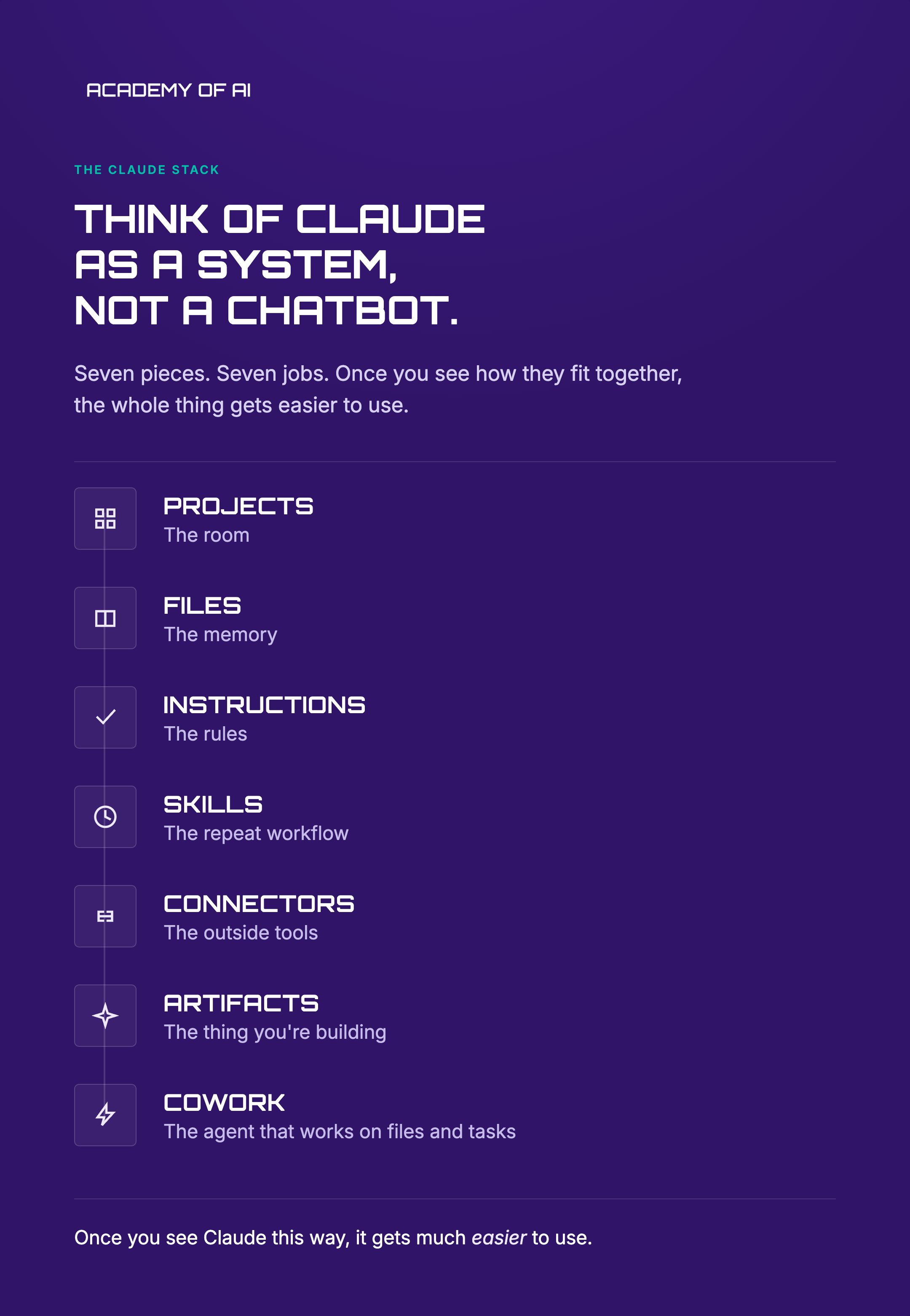
A lot of people get confused because Claude now has Projects, Skills, Connectors, Artifacts, file creation, Cowork, and more. Here is the simple version.
Use Projects when you need a focused workspace with persistent context. Use Project Knowledge when Claude needs files across multiple chats. Use Project Instructions when Claude needs project-specific rules. Use Skills when a repeat workflow should work across Claude, not just inside one project. Use Connectors when Claude needs access to outside tools like Google Drive, Gmail, Calendar, Slack, Linear, or GitHub. Use Artifacts when Claude is creating something substantial you want to view, edit, or reuse separately from the chat. Claude describes Artifacts as standalone content shown in a dedicated window, useful for things you may want to modify, build on, or reference later.
This is the easiest way to remember it:
Projects = the room
Files = the memory
Instructions = the rules
Skills = the repeat workflow
Connectors = the outside tools
Artifacts = the thing you are building
Cowork = the agent that can work on files and tasks
That is the stack. Once you see it that way, Claude gets much easier.
Step 23: Keep Project Files Small Enough to Stay Useful
Claude can handle a lot, especially with RAG on paid plans, but more context is not always better. More context can mean more noise.
Keep your core files short, direct, and useful. Your about-me.md does not need to become your memoir. Your voice-guide.md does not need every post you have ever written. Your examples-i-love.md should include the strongest examples, not 94 decent ones.
Claude’s usage docs note that message length, file attachment size, conversation length, tool usage, model choice, effort level, and artifact creation can affect usage limits. They also note that content in projects is cached and does not count against limits when reused, which is another reason reusable project context is smart.
Clean context saves time, usage, and sanity. A blessing.
Step 24: Maintain the Project Weekly
A Claude Project is not something you set up once and abandon. Treat it like a living workspace.
Once a week, update the files. Add new decisions. Remove outdated context. Add better examples. Move final outputs into the output log. Update goals. Add new audience language. Capture new customer objections. Delete files that no longer matter.
Use this weekly maintenance prompt:
Review this project knowledge and help me improve the setup.

Tell me:
1. Which files seem outdated
2. What context is missing
3. What files are too vague
4. What examples should be added
5. What instructions should be clearer
6. What workflow should become a skill
7. What I should update before using this project again
This is how your Claude Project gets better over time. Not through magic. Through maintenance.
Starter File Structures by Project Type
A universal structure is great, but some projects need specific files. Here are a few ready-to-steal setups.
Newsletter or Substack Project
NEWSLETTER-PROJECT/
  00_START_HERE/
    project-brief.md
    project-instructions.md

  01_CONTEXT/
    about-me.md
    audience.md
    publication-positioning.md
    content-pillars.md
    subscriber-goals.md

  02_VOICE_AND_STANDARDS/
    voice-guide.md
    seo-rules.md
    headline-style.md
    examples-i-love.md
    examples-i-hate.md

  03_SOURCE_MATERIAL/
    article-ideas.md
    reader-comments.md
    research-notes.md
    source-index.md

  04_WORKFLOWS/
    article-workflow.md
    headline-workflow.md
    editing-checklist.md
    seo-checklist.md
    social-caption-workflow.md

  05_OUTPUTS/
    drafts.md
    published-posts.md
    best-performing-posts.md
This is what I would use for Academy of AI.
Digital Product Project
DIGITAL-PRODUCT-PROJECT/
  00_START_HERE/
    product-brief.md
    project-instructions.md

  01_CONTEXT/
    audience.md
    problem.md
    transformation.md
    offer.md
    pricing.md

  02_STANDARDS/
    brand-voice.md
    product-quality-bar.md
    examples-i-love.md
    examples-i-hate.md

  03_SOURCE_MATERIAL/
    customer-research.md
    competitor-notes.md
    testimonials.md
    objections.md

  04_WORKFLOWS/
    product-outline-workflow.md
    lesson-writing-workflow.md
    sales-page-workflow.md
    launch-workflow.md

  05_OUTPUTS/
    product-drafts.md
    sales-assets.md
    launch-emails.md
Use this when you are building templates, courses, guides, prompt packs, Notion systems, or paid resources.
Client Project
CLIENT-PROJECT/
  00_START_HERE/
    client-brief.md
    project-instructions.md
    scope.md

  01_CONTEXT/
    client-overview.md
    audience.md
    goals.md
    constraints.md
    stakeholders.md

  02_BRAND/
    brand-voice.md
    brand-rules.md
    examples-approved.md
    examples-rejected.md

  03_SOURCE_MATERIAL/
    meeting-notes.md
    client-feedback.md
    research.md
    assets-index.md

  04_WORKFLOWS/
    deliverable-workflow.md
    review-checklist.md
    revision-process.md
    approval-process.md

  05_OUTPUTS/
    drafts.md
    final-deliverables.md
    decisions-log.md
This structure protects your client work from becoming scattered and messy.
Personal Productivity Project
PERSONAL-OS/
  00_START_HERE/
    personal-brief.md
    project-instructions.md

  01_CONTEXT/
    about-me.md
    goals.md
    values.md
    current-projects.md
    constraints.md

  02_SYSTEMS/
    weekly-review.md
    daily-planning.md
    decision-rules.md
    recurring-tasks.md

  03_REFERENCE/
    routines.md
    notes.md
    ideas.md

  04_WORKFLOWS/
    weekly-planning-prompt.md
    project-prioritization-prompt.md
    email-cleanup-prompt.md

  05_OUTPUTS/
    weekly-plans.md
    decisions-log.md
    completed-projects.md
This is for using Claude like a personal operating system, without letting it run your life like a weird little robot boss.
The Best First Prompt for Any New Claude Project
Once everything is set up, this is the first prompt I would use:
Read the project knowledge and project instructions.

Before doing any work, tell me:
1. What you understand this project is for
2. What files you used
3. What voice and standards you should follow
4. What outputs you are best equipped to help create
5. What context is missing
6. What questions you need answered before we begin

Then wait for my answers.
This prompt forces Claude to orient itself. It also shows you whether the setup works.
The Everyday Prompt for Using the Project
After setup, use this prompt constantly:
Use the project knowledge for context.

I want to create:
[insert output]

Audience:
[insert audience]

Goal:
[insert goal]

Success criteria:
[insert what good looks like]

Before drafting, ask me any missing questions. Then create the outline first.
This keeps Claude from sprinting into the wrong task. Fast is only useful when the direction is right.
The Project Audit Prompt
Run this once a month:
Audit this Claude Project.

Tell me:
1. What is working well
2. What context is missing
3. What files should be added
4. What files should be removed or merged
5. What instructions are unclear
6. What repeat workflows should become skills
7. What I should update based on the outputs we have created
8. The 5 highest-impact improvements to make next
Your project should get smarter as you use it. If it does not, you are just hoarding files.
What This Means for You
A Claude Project is not just a place to keep chats. It is how you teach Claude your world.
The better your setup, the better the work. Your files become memory. Your examples become taste. Your project instructions become standards. Your workflows become leverage. Your skills become repeatable systems.
This is how you stop using Claude like a random chatbot and start using it like an actual work partner.
Not because Claude is magic. Because you gave it the right room, the right rules, and the right context.
That is the whole move.
Your First Assignment
Create one Claude Project today. Not five. One.
Pick the project that would save you the most time or make your work noticeably better this week. Create the local folder. Add the starter files. Upload them to Project Knowledge. Add project instructions. Run the first project test.
Use this prompt to begin:
Help me set up a Claude Project for [project name].

Ask me 10 questions about the project, audience, goals, voice, standards, source material, workflows, constraints, and outputs.

After I answer, create:
1. A recommended file structure
2. The content for project-brief.md
3. The content for project-instructions.md
4. A list of files I should create next
5. The first prompt I should use after uploading everything
Do that once, and Claude gets better forever inside that project.
That is not a small upgrade.
That is your AI operating system.
Keep reading on Academy of AI
Subscribe to Academy of AI
Academy of AI helps everyday people learn the tools already changing work, money, creativity, and freedom. No panic, no jargon, and no gatekeeping.
Just practical AI education for people who want to use these tools with clarity, confidence, and power.
Subscribe to Academy of AI if you want to stop dabbling with AI and start building real leverage.