



ChatGPT does not have a documented native import for Claude project chats. You can carry over instructions, selected files and a written project brief. That gives the new assistant context. It does not recreate the old project or its separate conversation threads.
The reverse move has one extra tool: Claude’s memory import. It accepts reviewed context from another assistant on Free and paid plans. It remains experimental. In either direction, I would move one active project first and test it before rebuilding the rest.
Start with the Claude-to-ChatGPT steps below. The second half covers moving from ChatGPT to Claude. Product instructions were checked on October 30, 2026.
Can ChatGPT Import Claude Project Chats? What Transfers
A file upload and a chat-history import are different things. OpenAI’s transfer guide describes uploading exported ChatGPT conversations as reference in a new chat. It explicitly says that this does not rebuild the sidebar, settings or memories. That guide covers ChatGPT exports, not a native Claude migration.
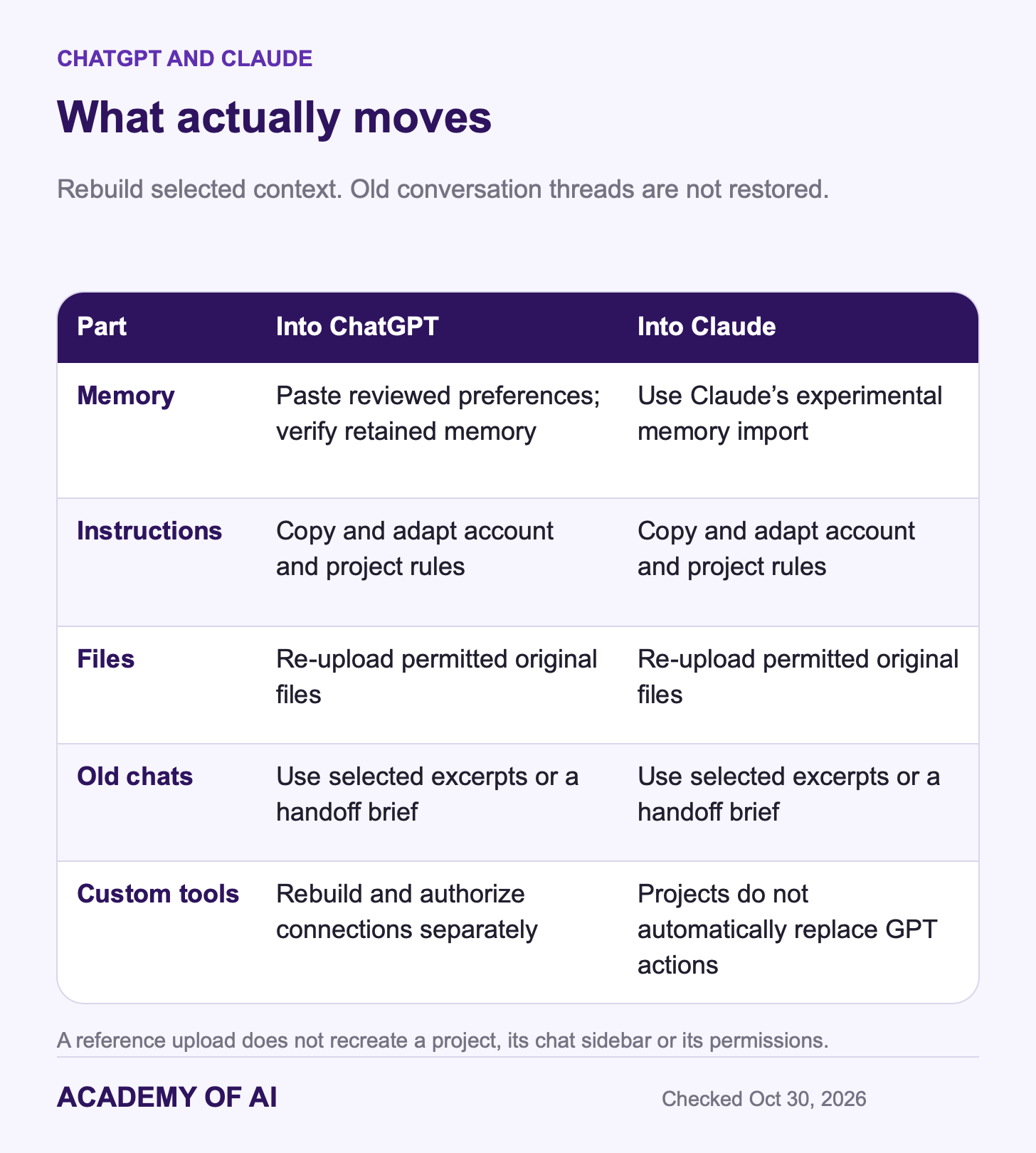
Here’s how each piece of your setup travels, as of October 30, 2026:
Memory: Claude has an import flow. For ChatGPT, paste selected preferences and review what it remembers.
Instructions: copy and adapt account and project rules.
Files: upload the originals you are permitted to move.
Conversations: use reviewed briefs or selected reference excerpts. Separate old chats are not recreated.
Custom GPTs: rebuild accessible instructions and files. Tools, actions and connections need separate setup.
Move Claude Projects and Memory Into ChatGPT
Start by saving the parts you need from Claude. Its export guide uses Settings → Privacy → Export data on web or desktop. The emailed link lasts 24 hours. Team and Enterprise members need their owner to allow exports; uploaded file contents are not included in their chat export. Keep your original project files separately.
For memory, open Settings → Your Claude → Manage beside Your memory, or the older Memory settings. Anthropic also suggests asking Claude to write out its memories verbatim. Review the list and save only what you want to carry.
Please remember these reviewed facts and preferences for future chats.
Do not infer extra details. Tell me which items you could retain and which need clarification.
[paste your edited list here]
Enable memory if you want it used across chats, then review Settings → Personalization → Memory. OpenAI’s memory guide says controls vary by account and memory does not retain every detail. Keep exact project requirements in instructions or files.
Put standing preferences in ChatGPT’s custom instructions. Free and Go allow 1,500 characters; listed paid and organization plans allow 5,000. For each project, create a matching ChatGPT project, add its instructions and original files, and upload a reviewed handoff brief from Claude. Our ChatGPT setup guide covers the broader account settings.
What You Need for a ChatGPT-to-Claude Move
Use a computer for this walkthrough. Claude supports memory import and account exports on the web and desktop. Its mobile apps do not offer account export. The work involved depends on how many projects and files you keep.
Plan limits shape the rebuild. Claude’s Free plan allows up to five projects, according to Anthropic’s projects overview, and on paid plans Claude switches on a retrieval mode by itself when project knowledge gets large, which Anthropic says expands capacity by up to 10 times. If you’re moving a pile of ChatGPT projects, that five-project cap on Free decides how many come across at once. Claude Pro costs $20 a month, or $200 a year billed up front (advertised as $17 a month), per Claude’s pricing page. Those are US-dollar prices before tax, as of October 30, 2026.
Work accounts are a different case. If your ChatGPT or Claude account belongs to an employer, the conversations are usually company data, and moving them
into a personal account can break company policy. Ask your admin first.
Export Your ChatGPT Data Archive First
Request a backup before deleting anything or changing accounts. Open the ZIP and check that the conversations you need are present. OpenAI’s export guide gives this web path:
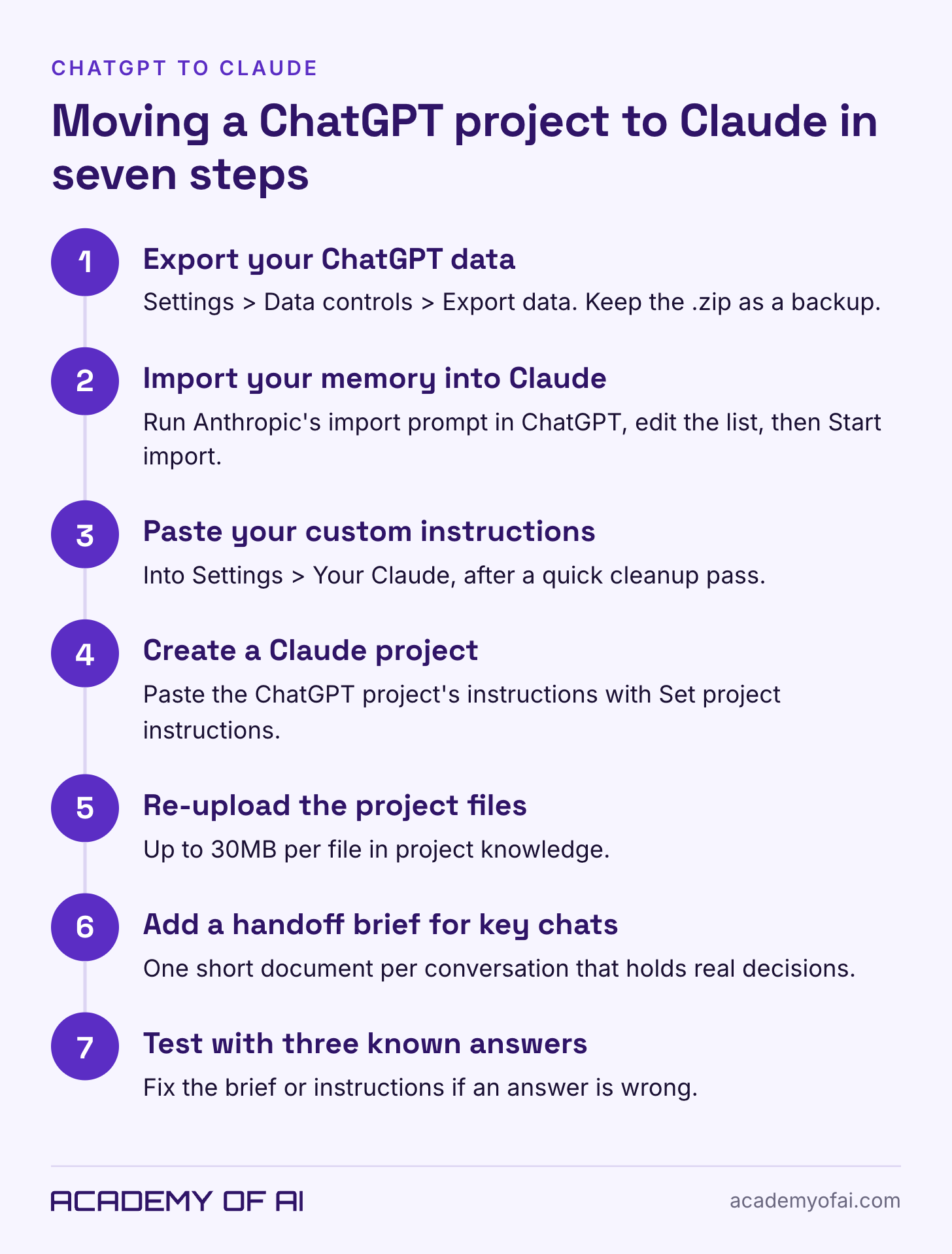
Open your profile menu in ChatGPT and choose Settings → Data controls.
Under Export data, select Export, then Confirm export.
Wait for the email or SMS. It can take up to seven days.
Download within 24 hours, while signed in to the account that requested it.
The ZIP includes chat history and other account data. Settings exports are available to Free, Go, Plus and Pro, and eligible Edu workspaces. Business, Enterprise and Healthcare users need organization-managed access. Do not assume a work account permits a personal copy.
Bring Over ChatGPT Memory With Claude’s Official Tool
Claude’s import guide supports memory imports on Free, Pro, Max, Ultra, Team and Enterprise. The tool is experimental, so treat the imported entries as something to inspect.
Check memory under Settings → Your Claude. Older layouts use Settings → Memory; some legacy organizations use Capabilities. Work-account owners control availability. Check your own setting before importing.
Open the official import guide and copy its suggested prompt.
Run it in your current assistant. Treat its response as a starting list, not proof that every memory was exported.
Remove sensitive details and information that the new assistant does not need.
In Claude, open Settings → Your Claude → Start import, or the corresponding Memory settings in an older layout.
Paste your reviewed list, select Add to memory, then inspect the resulting entries.
Anthropic’s documentation flags two catches. Claude’s memory focuses on work-related topics, so personal details unrelated to work may not stick. And Claude “may not always successfully incorporate” imported memories, so check what landed. With the newer memory system, Anthropic says updates show up shortly after import. Some Team and Enterprise organizations still run the legacy version, where it can take up to 24 hours.
Copy Custom Instructions Into Claude’s Account Settings
Account instructions hold standing preferences such as tone and format. In ChatGPT, use Settings → Personalization → Custom Instructions on web or desktop. OpenAI’s guide uses Customize ChatGPT for the mobile settings path.
In Claude, use Settings → Your Claude → Instructions. The older layout uses Account → Instructions for Claude, according to Anthropic’s personalization guide. Remove references to tools the new assistant does not have. This prompt can help:
Below are the custom instructions I used in ChatGPT. Rewrite them as standing instructions for you.
Keep every preference about tone, format, length and my role.
Remove anything that refers to ChatGPT-specific features, and merge duplicates.
Show me the rewritten version only. Don't save anything yet.

[paste your ChatGPT custom instructions here]
Paste the result into Settings yourself. That way you see exactly what’s in there.
Rebuild a ChatGPT Project as a Claude Project
A ChatGPT project comes across in three parts: instructions, files and context. Our Claude Projects setup guide covers structure in depth, so this section sticks to the move. Anthropic’s create and manage projects article gives the steps:
Click Projects in Claude’s sidebar (or go to claude.ai/projects), then + New Project. Name it the same as the ChatGPT project so you can match them later.
Click Set project instructions, paste the instructions from your ChatGPT project, and click Save instructions.
In the project knowledge panel on the right, click + and upload the original files. Anthropic’s upload guide caps project files at 30MB each.
Upload the handoff brief from the next section as one more file.
A custom GPT is not identical to a Claude project. If you own or have permission to use its instructions and files, copy those parts. Reconnect external tools separately and test the original tasks. Actions, authentication and integrations do not transfer with the text.
Carry Old Conversations Over as Handoff Briefs
Claude cannot automatically browse your separate ChatGPT account. You can provide selected conversation material as context. For an active project, a short handoff brief is usually easier to review than a full export.
I would avoid uploading the full archive by default. Choose the conversations that contain decisions, then run this prompt in each one. It works in either assistant:
I'm moving this work to another AI assistant. Write a handoff brief in Markdown that someone with no access to this conversation could pick up from. Include:
- The goal and who the work is for
- Decisions we made, with the reason for each
- Current status and the next three tasks
- Names, numbers, terms and facts that come up repeatedly
- My preferences for tone, format and length
- Open questions we haven't settled
Use only what appears in this conversation. Mark anything you're unsure about as [CHECK].
Leave out passwords, account numbers, health details and other people's personal information.
Read the brief before you save it. A summary can drop a decision or state a guess as fact, and the [CHECK] tags show you where to look. Save it as a .md or .txt file and upload it to the matching Claude project.
For a chat that lives outside any project, the same brief works as the first message of a new Claude conversation. If it turns out to belong to a project after all, Anthropic’s projects article says you can use Add to project from the chat’s dropdown menu to move it.
Check What Claude Kept After the Switch
Anthropic suggests asking Claude “I updated my memory. What did you learn about me?” after an import. Compare the answer with the list you pasted, then fix gaps in the memory panel or by telling Claude in chat what to add or remove.
For each rebuilt project, ask three questions you already know the answers to. Something like:
Using only this project's instructions and files: what's the goal of this project, what did we decide about [a specific decision], and what are the next three tasks?If an answer is wrong, check the source brief, instructions and the model’s interpretation. Correct missing context, then ask again. Keep access to the original material until you have checked a few real tasks.
Privacy Rules for Your Downloaded Chat Archives
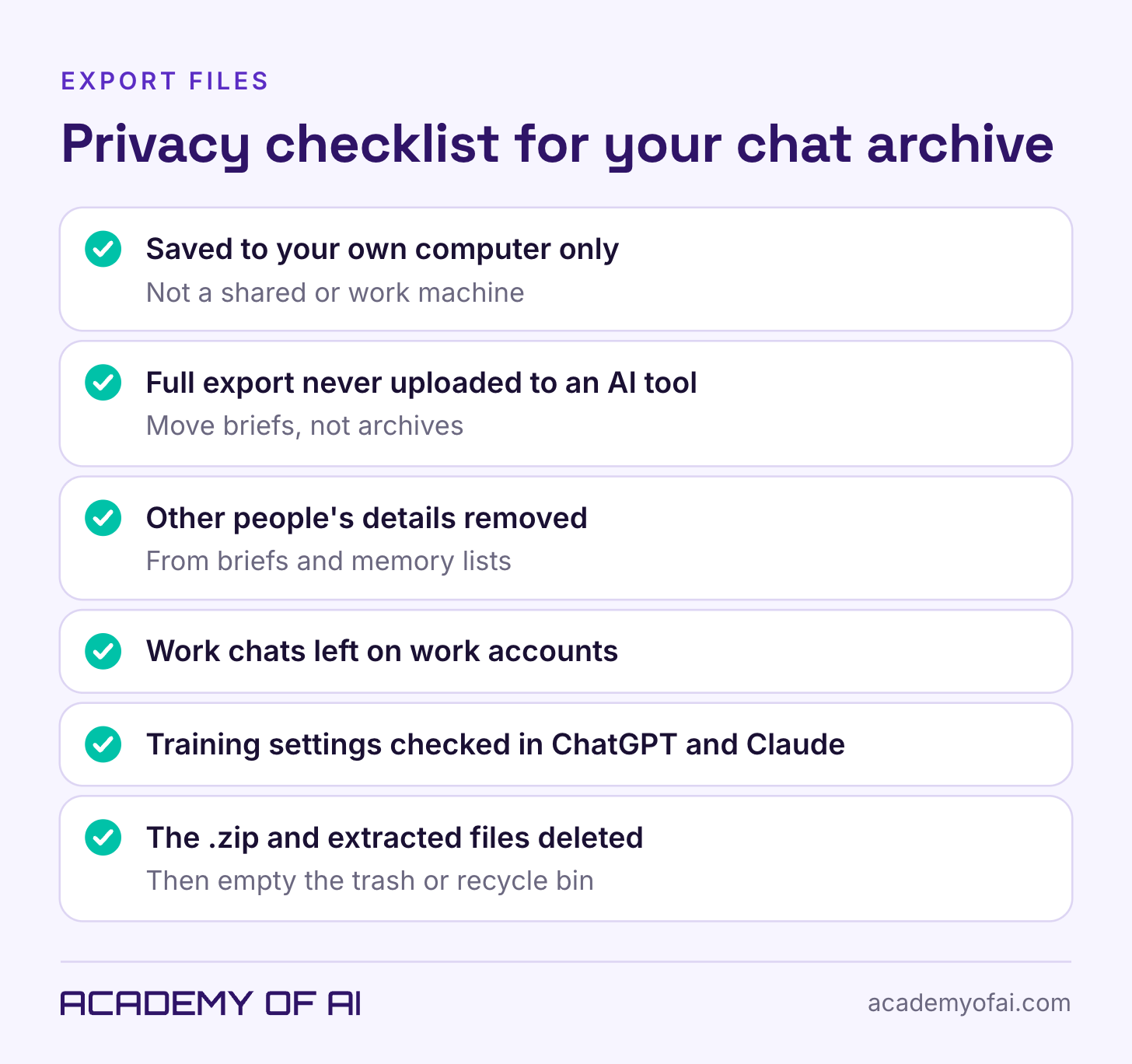
An export can collect sensitive conversation material in one place. It may include old contracts, personal questions or other people’s details. Keep it secure and check its contents before sharing any part.
Download it to your own computer, not a shared or work machine.
Don’t upload the full export to any AI tool, including the one you’re moving to. Move briefs, not archives.
Before you paste a memory list or a brief anywhere, remove other people’s personal details. Your colleague didn’t agree to be in Claude’s memory.
Leave work chats on work accounts. Company data copied into a personal account is still company data.
Check training settings on both sides. ChatGPT’s toggle is Improve the model for everyone under Settings > Data controls, per OpenAI’s data controls FAQ. Claude’s is under Settings > Privacy, which Anthropic’s privacy center shows as “Help Improve our AI models.”
Delete the .zip and any extracted folders when you’re done, then empty the trash or recycle bin.
After testing the rebuilt project, decide whether to keep the old account or downgrade it. Account deletion is permanent. Verify your backup first, and check which files it actually contains. Our ChatGPT account deletion guide covers the process.
ChatGPT and Claude Switching Questions, Answered
Can Claude Read My ChatGPT Conversation History?
Not automatically. Claude’s native import handles memory, not a restored ChatGPT conversation history. It can work with selected transcripts or briefs you provide as context. Review those files before uploading.
Does Memory Transfer Work on Claude’s Free Plan?
Yes. Memory import is available on Free and paid Claude plans through the web or desktop app. It is experimental, so review what Claude retained.
Can I Move a Custom GPT to Claude?
Not automatically. If you built the GPT, copy its instructions into a new Claude project and upload its files. For a GPT someone else built, you’d need its creator to share the instructions.
How Long Do the Download Links Last?
Both expire 24 hours after delivery, according to each company’s help center. If you miss the window, run the export again for a fresh link.
Keep reading on Academy of AI