



Yes, Claude can read XLSX files. Upload an Excel workbook to a chat with code execution and file creation enabled. Claude can calculate totals, clean a copy, make charts and create a downloadable spreadsheet. You still need to check its work.
The file-creation feature works on Free and paid plans. It uses a separate computing environment to run code. That helps with calculations, but it does not make an uploaded file confidential by default. Your account terms and organization’s rules still apply.
I would start with a small practice file and an inventory prompt. The fictional workbook below includes deliberate problems and a checked answer key. Use it to learn the workflow before uploading an approved work report. Product guidance was checked on October 30, 2026.
Can Claude Read XLSX Files? Formats and File Size Limits
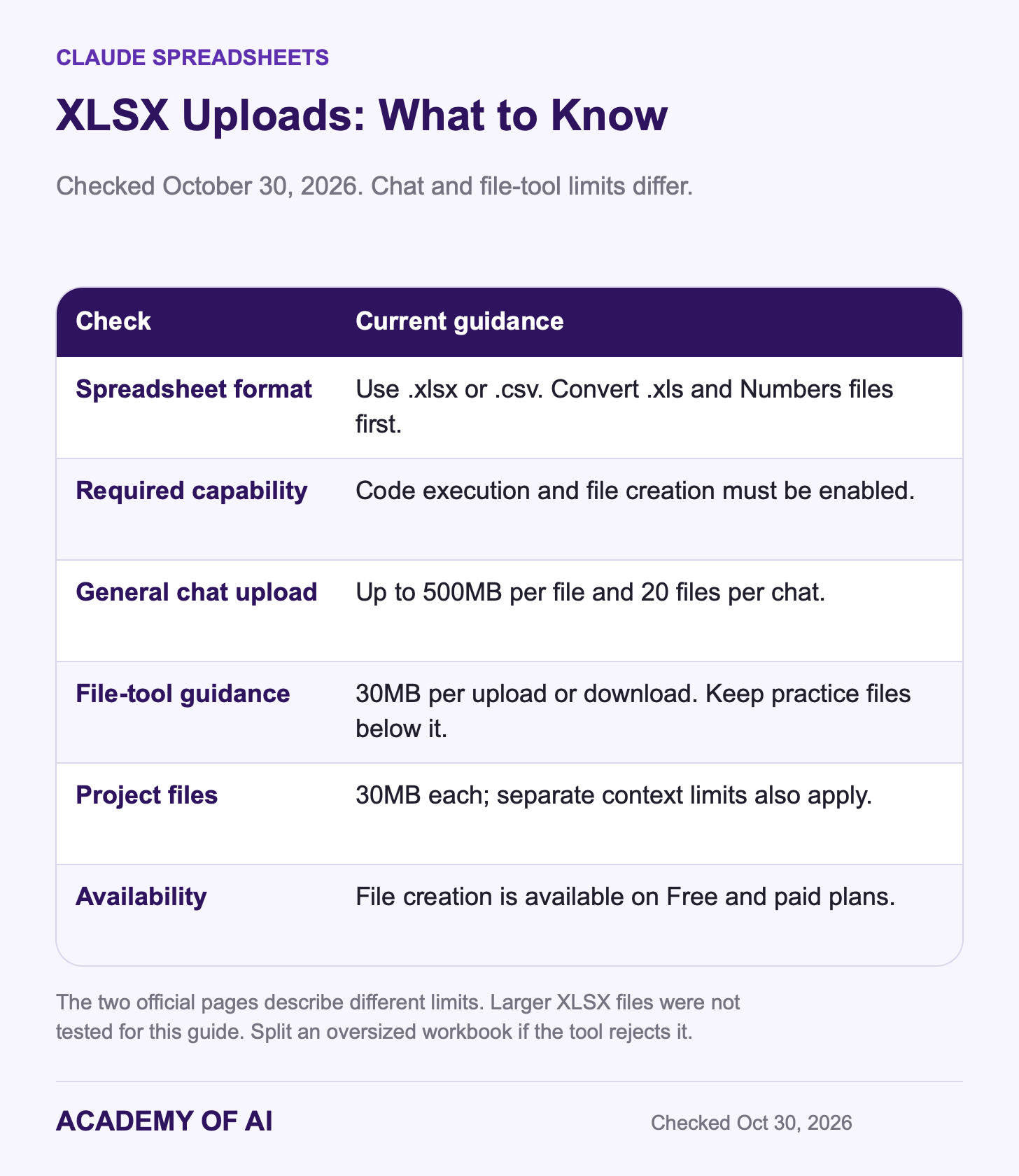
For this workflow, use .xlsx or .csv. Both appear in Anthropic’s supported upload formats. Older .xls and Apple Numbers files are not listed. Save a copy as .xlsx first. CSV exports lose separate sheets and formatting, so use XLSX when those matter.
Anthropic lists 500MB per chat file and up to 20 files per chat. Project files have a 30MB ceiling and separate context limits. The file-creation guide also specifies 30MB per upload or download for that feature.
For spreadsheet practice, I would stay below 30MB. The two help pages describe different limits, so I would not promise that a larger workbook will analyze successfully. This guide does not include a large-file upload test. If Claude rejects a workbook, split a copy into smaller files or remove unnecessary sheets.
Size isn’t the only limit you’ll feel. Anthropic’s Pro plan usage article says the number of messages you can send depends partly on the length of the files you attach, and it advises against re-uploading the same file in one conversation because Claude already has it. Our guide to stretching Claude’s usage limits has more ways to make each session last.
Check Claude’s Code Execution Setting
Code execution and file creation must be enabled for XLSX uploads. It may already be on. Check it before changing anything else.
Open Settings → Capabilities in Claude.
Under Code execution and file creation, check Run code in the cloud. If Claude requires Artifacts, enable that capability too.
On mobile, open the sidebar and your account settings to find Capabilities. Labels can change as the app updates.
Start a chat, select + → Add files or photos, and choose the workbook. On desktop, you can also drag it into the message box.
Work administrators can control this capability and its network access. A missing toggle can reflect account access or organization settings. Ask your admin to check. Do not move company data into a personal account to bypass the restriction. If uploads still fail, use our Claude troubleshooting guide.
Download the Fictional Sample Sales Workbook
Practicing on fake data first is the cheapest way to learn how Claude handles a spreadsheet, because you can check every answer against known numbers.
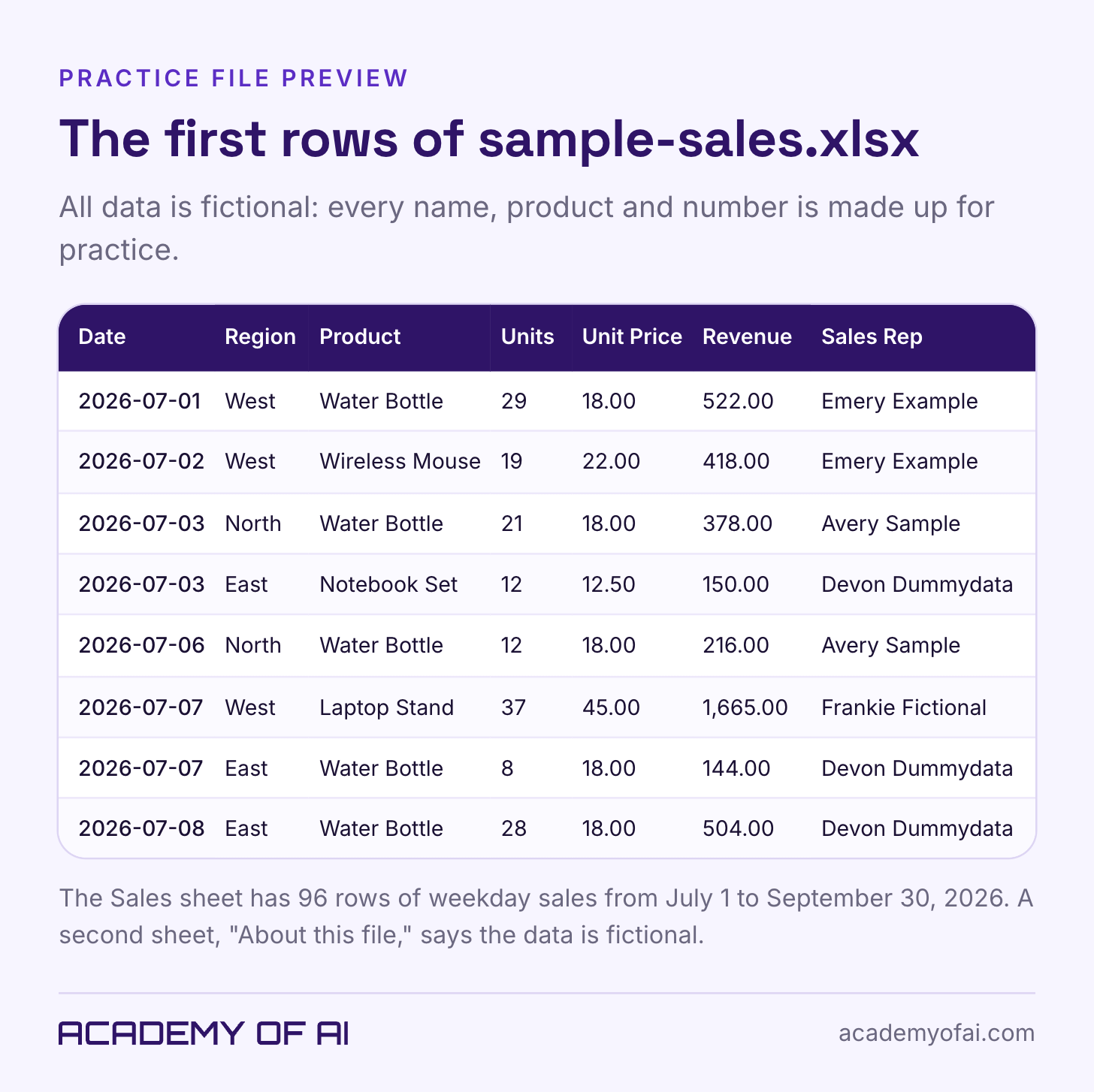
The downloadable sample-sales.xlsx contains 96 fictional sales rows from July 1 through September 30, 2026. Its columns are Date, Region, Product, Units, Unit Price, Revenue and Sales Rep. The second sheet explains the exercise. Amounts have no assigned currency.
Four kinds of problems are planted in the Sales sheet: a duplicate, inconsistent labels, a missing price and conflicting arithmetic. Try the prompts before reading the answer key. The first eight records match the graphic below.
Download the sample-sales.xlsx practice workbook.
Analyze an Excel File in Claude in Six Prompts
Each step below has a prompt you can paste as written. Claude’s replies won’t match anyone else’s word for word, and they may vary between runs, so focus on whether the numbers and the reasoning check out.
1. Ask for an Inventory Before Any Analysis
Make Claude describe the file before it touches anything. That confirms it opened the right sheet and surfaces messy data before it skews your totals.
I've attached sample-sales.xlsx. Before any analysis, give me an inventory:
- every sheet name and what it seems to contain
- the column names, data types and row count on each sheet
- the date range covered
- anything that looks wrong: blanks, duplicates, inconsistent labels, or numbers that don't add up
Don't change or fix anything yet.
2. Clean a Copy and Log Every Change
Silent fixes are the risk with any assistant. Ask for a change log and tell Claude to stop and ask when a fix requires a judgment call.
Clean the Sales sheet in a copy of the data and leave the original untouched.
For each problem you fix, list the row number, what was wrong, and what you changed.
If a fix needs a judgment call (for example, two numbers that disagree), ask me before choosing.
That last line earns its place. In the sample file, one row’s revenue disagrees with units times price, and you want that flagged, not quietly “corrected” in whichever direction looked tidier.
3. Ask Business Questions That Have a Checkable Answer
Ask for specific totals and comparisons. You can verify those more easily than a broad request for “insights.”
Using the cleaned data, answer each question with a number and a one-line explanation:
1. Total revenue for the quarter
2. Revenue by region, highest to lowest
3. Revenue by month, with the percentage change from month to month
4. The top product by revenue, and the top product by units sold
5. Revenue by sales rep, plus each rep's average revenue per sale
Say how you calculated each one.
Calculate the revenue leader and units leader separately. They can be different products, but matching answers do not automatically indicate a mistake. In this workbook, Laptop Stand leads both.
4. Turn the Numbers Into Charts
Claude can generate downloadable PNG charts through file creation. Specify the comparison, chart type and labels. Check the chart against the underlying totals.
Make two charts from the cleaned data:
1. A bar chart of total revenue by region
2. A line chart of revenue by month
Label both axes, show the values on the bars, and give me each chart as a PNG I can download.
5. Get a Working Excel File Back
Ask Claude for formulas in the summary workbook. That makes calculations easier to trace when you open the file in Excel.
Build a new Excel file called sales-summary.xlsx with three sheets:
- "Clean Data" with the cleaned rows
- "Summary" using live Excel formulas (SUMIFS, not pasted values) to total revenue by region, month and rep
- "Change Log" listing every cleaning change with the original row number
When the file downloads, open it and click a few cells on the Summary sheet. Each one should show a formula in Excel’s formula bar, not a typed number.
6. Write the Summary Your Manager Will Read
The last step turns analysis into something a busy person reads in 30 seconds. Tell Claude what to leave out as plainly as what to put in.
Write a five-bullet summary of Q3 sales for my manager. Plain language, no jargon.
Lead with total revenue and the biggest change between July and September.
Flag any data problems that affect the numbers.
Don't guess at causes the data can't show.
If your team works in ChatGPT instead, our ChatGPT prompts for spreadsheets cover the same kinds of jobs with prompts written for that tool.
Check Claude’s Math Against the Sample Answer Key
This answer key was calculated directly from the downloadable practice data. It is not a record of Claude’s replies. The cleaned version removes one duplicate, standardizes “west,” fills the missing price and treats row 60’s revenue as the typo.
Rows: 96 before cleaning; 95 afterward.
Recorded revenue: 60,497.00. Cleaned revenue: 56,725.00.
Regions: West 16,678.50, North 14,790.50, East 13,189.00, South 12,067.00.
Months: July 18,265.00, August 18,931.50, September 19,528.50. August increases 3.65%, then September increases 3.15%.
Product leader: Laptop Stand has 21,510.00 in revenue and 478 units.
Use Excel row numbers, including the header, to find the planted issues. Rows 24 and 25 are identical. Rows 19 and 43 use lowercase “west.” Row 36 lacks a Unit Price for a Wireless Mouse, priced at 22.00 elsewhere. Row 60 records 4,080.00 for 12 Desk Lamps at 34.00 each. Multiplication gives 408.00.
A total of 60,397.00 means the revenue typo survived after removing the duplicate. A total of 56,825.00 means the duplicate survived after fixing the typo. Matching the grand total alone is not enough: check labels and the missing price too. For row 60, Claude should ask which value is authoritative before changing it. On real records, confirm against the source transaction.
On your own files there’s no answer key, so build a small one. Check the grand total against a pivot table or a SUM in Excel, spot-check three random rows by hand, and compare the row count Claude reports with the row count Excel shows. You can also ask Claude to show the code it ran for any number that looks off. Anthropic’s own Claude in Excel page tells users to review changes before finalizing them because Claude can make mistakes, and that advice holds for chat uploads too.
Claude for Excel: Plans, Platforms and Tradeoffs
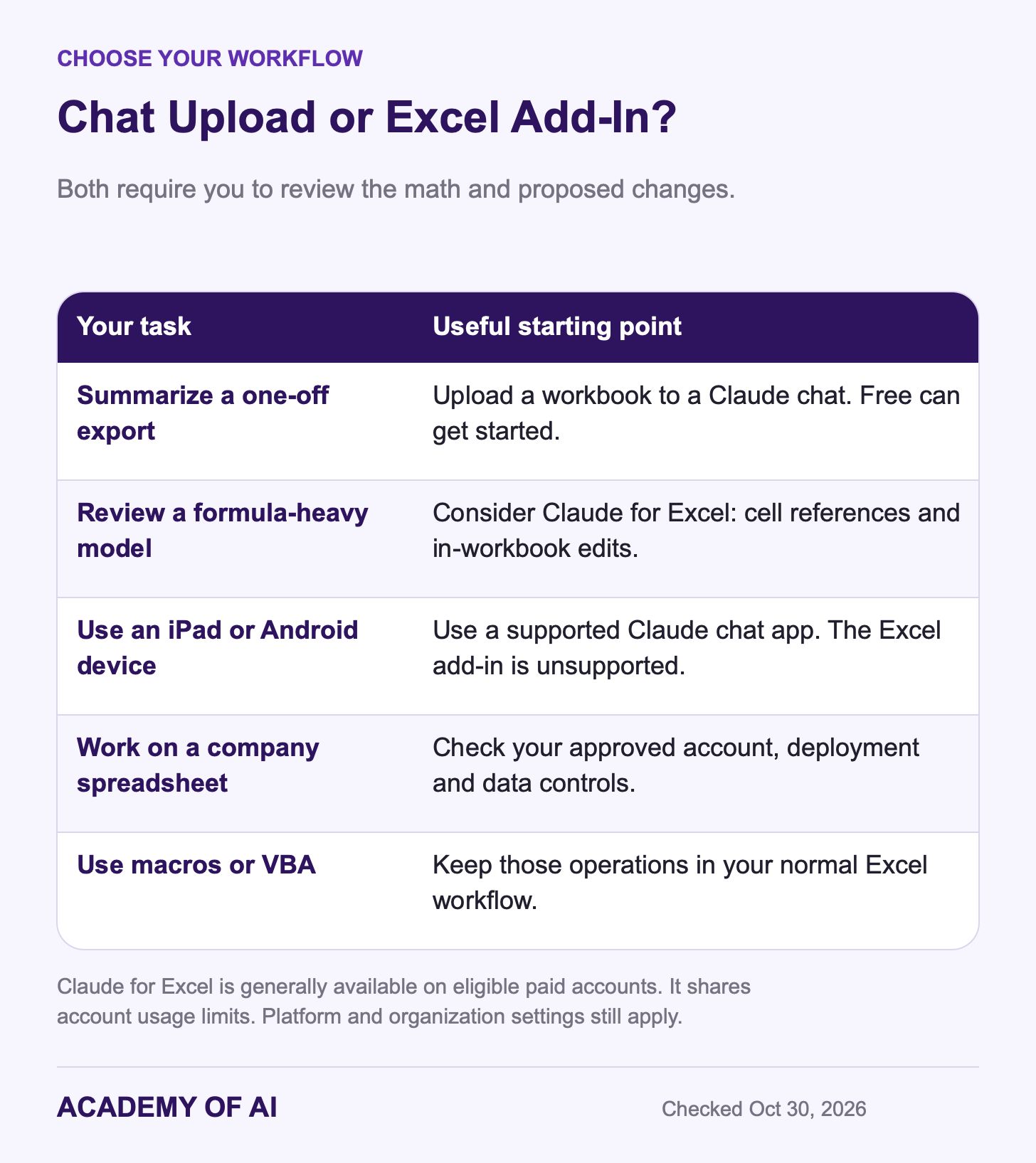
Claude for Excel is generally available on eligible paid plans. It works inside the workbook, with cell references and editing tools. Chat uploads remain a useful Free starting point.
Supported versions include Excel on the web, Microsoft 365 on Windows and current Excel for Mac. The add-in does not support iPad, Android, Excel 2016/2019 perpetual licenses or older Microsoft 365 builds. Macros, VBA operations and data tables are unsupported. It shares your Claude account’s usage limits.
I would consider the add-in when tracing formulas or revising a workbook repeatedly. A chat upload is often simpler for a one-off export. Neither route guarantees correct calculations or preserved dependencies. Work on a copy and review the changes.
Add-in chat history stays in the local browser and does not sync across devices. Clearing it does not delete Anthropic’s backend copies. Backend inputs and outputs normally have a 30-day retention period, with exceptions. Custom retention settings do not carry over. Enterprise audit logs exclude this activity; enabled Compliance API reporting includes it. Check the current data-handling details before using regulated workbooks.
The cheapest way in is Pro at $20 a month, or $200 a year billed up front, per Claude’s pricing page (US dollars before tax, as of October 30, 2026).
Formatting Habits That Throw Off Claude’s Numbers
A messy file can produce misleading results even when the arithmetic works. For example, 03/04/2026 could mean March 4 or April 3. Store real Excel dates where possible. Otherwise, tell Claude the intended format before it groups your data.
A “Grand Total” row inside the data can get counted twice. Work on a copy and tell Claude to exclude totals. Merged cells, multirow headers and several tables on one sheet also need explicit handling. Ask it to identify each table before calculating.
Hidden sheets and columns still travel with the workbook. Inspect a copy and remove information the task does not need. Hiding a column is not a privacy control.
For this tutorial, attach the workbook directly to the chat so the file and task stay together. Project files can also be accessible through Claude’s computing environment. They have separate upload and context limits. Our Claude Projects guide explains persistent project context.
Work Data to Keep Out of Claude Chats
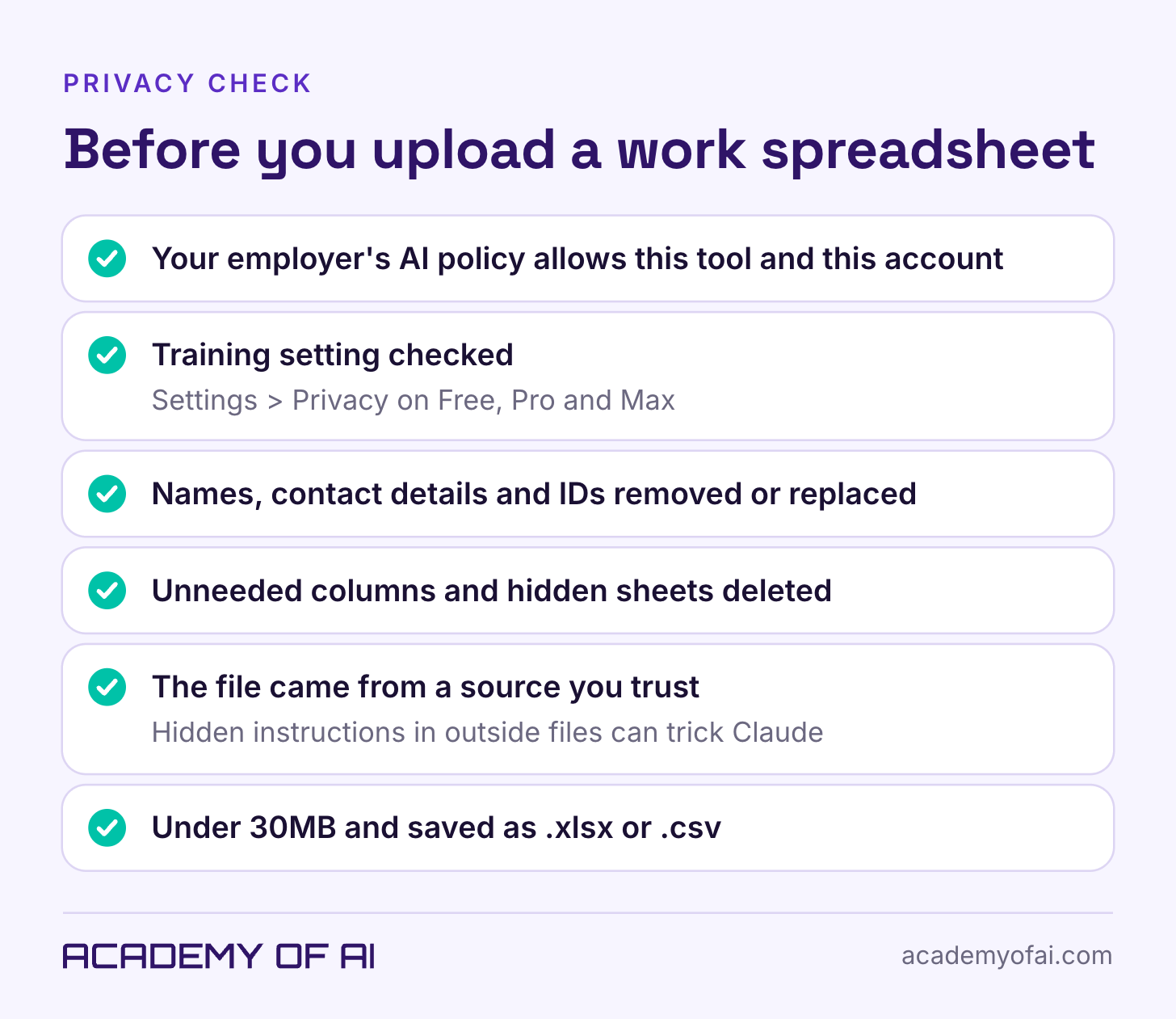
Read your employer’s AI policy before you upload anything from work. Some companies approve Claude on a Team or Enterprise account and ban personal accounts for company data, and others ban outside AI tools outright. Healthcare, finance and HR files often carry legal duties on top of that, and the policy applies to you whether or not the upload button works.
For consumer accounts, review Settings → Privacy → Help Improve our AI models. Anthropic’s privacy guidance explains the opt-out and its exceptions. Turning it off affects future training runs; it does not undo training already underway. With improvement enabled, eligible data may be retained for up to five years. A training opt-out does not replace workplace authorization.
Before using a personal account for work, stop and check approval for data such as:
Customer or patient names, emails, phone numbers and addresses
Payroll, salaries, performance reviews and anything else from HR
Bank account numbers, card numbers and tax IDs
Anything under an NDA or a client contract that limits sharing
If you need the analysis anyway, strip the file down first. Delete columns the question doesn’t need, swap names for IDs like “Rep 01,” and aggregate where you can. A workbook of regional totals answers most management questions without a single customer record.
One more risk is specific to files from strangers. Anthropic’s file creation article warns that a bad actor can hide instructions inside external files to trick Claude into running untrusted code or leaking data, and the Claude for Excel help page says to use it only with trusted spreadsheets. For a full read of the rules, see our breakdown of Claude’s terms of service and privacy policy.
Start with the sample workbook and the inventory prompt. Check the result against the answer key, then try a small, approved report. Keep the original and verify every number you plan to share.
Claude Spreadsheet Questions, Answered
Does Claude Have an Upload Limit?
Yes. The general upload guide lists 500MB per chat file, 20 files per chat and 30MB per Project file. The file-creation guide separately lists 30MB uploads and downloads. Keep spreadsheet practice below 30MB, and check your account’s usage allowance too.
Does File Analysis Work on Claude’s Free Plan?
Yes. File creation is available on Free. Code execution must be enabled, and Free usage limits still apply. The Excel add-in is a separate product requiring eligible account access.
Why Does Claude Reject Some Excel Attachments?
Check three things in order: the Run code in the cloud toggle under Settings > Capabilities (plus Artifacts, which it needs), the file format (.xls and .numbers need re-saving as .xlsx), and the file size. On a work account, an admin may have switched the feature off for your organization.
Does Claude Work With Google Sheets?
Yes, through supported Google Workspace connections and the Claude extension for Google Sheets. Access depends on your account and organization. For the workflow here, download a Sheet as .xlsx and attach that copy to Claude.
Keep reading on Academy of AI