



I really started using Claude Cowork in October to tackle some web development issues that one of our bigger editorial news websites was having. I had been waiting a long time for our developers to get back to us and to tackle some of the issues, and I was tired of waiting.
I thought, "You know what? I'm going to connect it to WordPress. I'm going to connect it to WP Engine. I'm going to connect it to Semrush, and I'm going to see if I can tackle these with the help of Cowork."
I had done a Semrush audit of the entire site, and it pointed out dozens of errors: everything from JavaScript that wasn't minified to broken URLs to images with no meta title or meta description. There were a ton of issues that Claude was able to help me fix.
Claude Cowork is Anthropic's tool for handing Claude a whole task, like research, a spreadsheet or a deck, instead of one question at a time. Since September 16, 2026, Anthropic has been merging it into regular Claude on paid plans, so you now hand off the task in any conversation.
Jump to: Before you start · Start a task · Folders · Background work · Docs and decks · Old Cowork setup · vs Claude Code · Fixes · FAQ
What Claude Cowork Was and What Changed on September 16
Cowork launched on January 12, 2026, as a research preview in Claude Desktop for Mac (Anthropic release notes). Over the year it added scheduled tasks, Windows, the web and phones, and cloud tasks that keep running after you close your laptop.
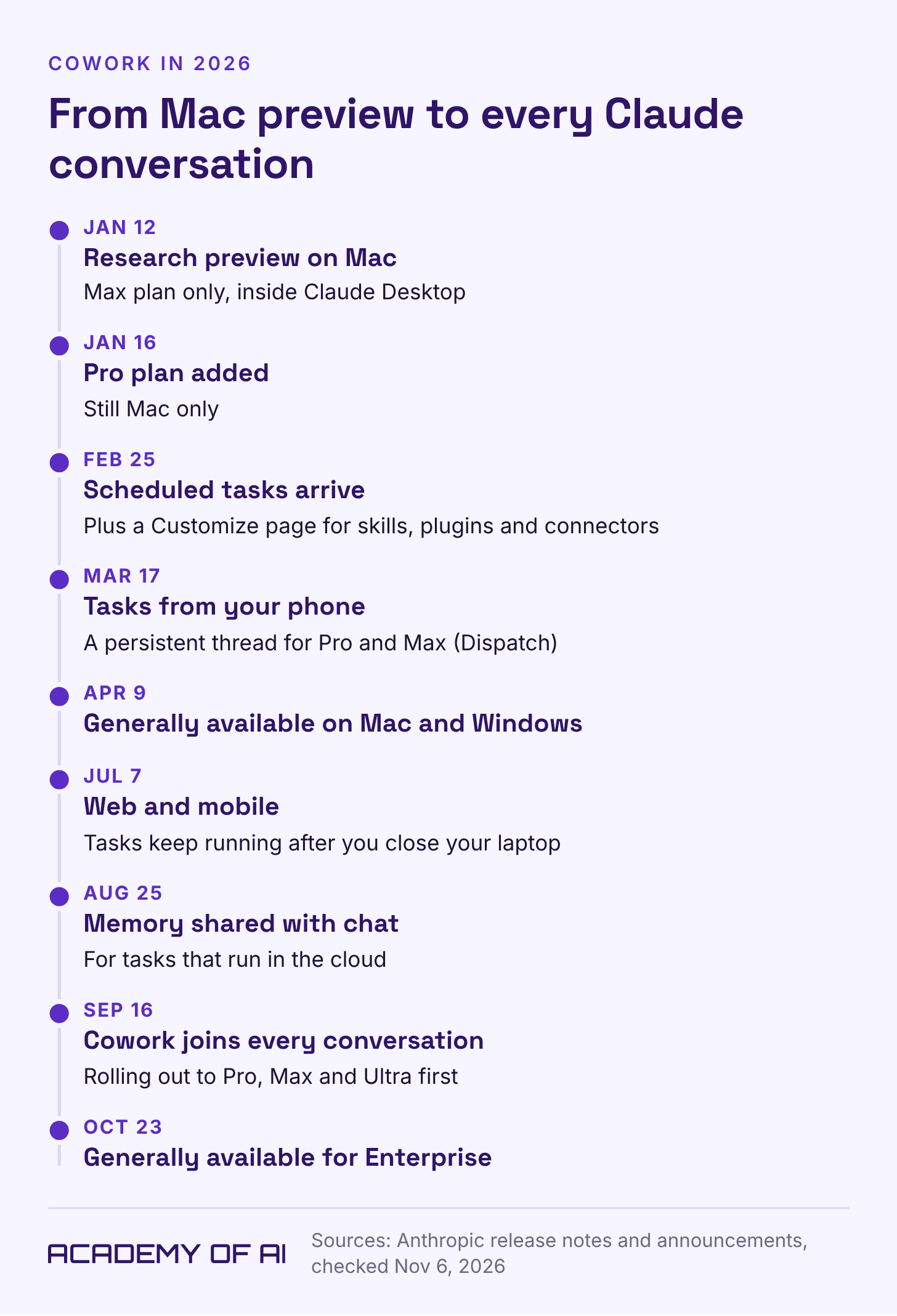
On September 16, Anthropic announced that "Claude Cowork and chat are now one Claude." You describe the task, and Claude picks the tools it needs (Anthropic Help Center, checked November 6, 2026). Pro, Max and Ultra got it first, Enterprise followed on October 23, Team has it in beta, and Free is coming "soon."
The name hasn't disappeared. Anthropic's product page now says "Claude Cowork is now just Claude," and Claude's own Usage page still lists Cowork as a product.
I'm an early adopter of using ChatGPT and Claude. I started using both products in late 2022, early 2023, somewhere in there.
Before October, I'd barely used Cowork, and I was blown away by how amazing it actually is and how few people that I know are actually using it (even if they are early adopters of ChatGPT or Claude or using AI). Now I'm using it every day for a variety of tasks, from content creation and creating carousels for social media to web dev, editorial, and all sorts of tasks.
Where Each Cowork Feature Lives in Claude Now
Nothing was deleted. Your chats, Cowork tasks, projects, connectors and skills carry over. They just sit in new places (Anthropic release notes).
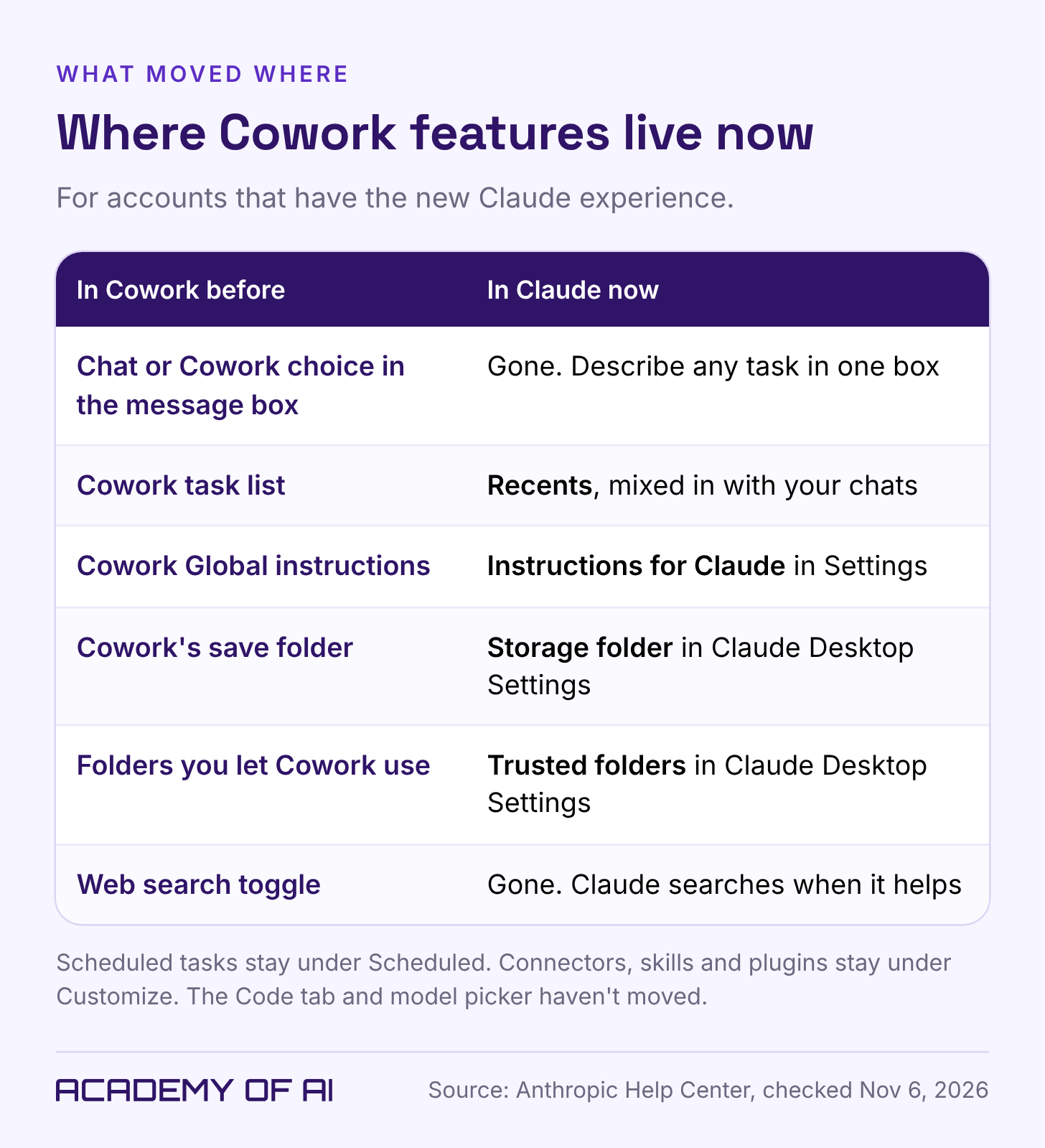
A few things work differently for now (Anthropic Help Center):
Research moved to the + menu, or type /deep-research.
Search skips older Cowork tasks, so find them in Recents.
Incognito chats still open the old experience and can't create files.
Dispatch is closed to new users.
Before You Start: Claude Cowork Pricing, Plans and Devices
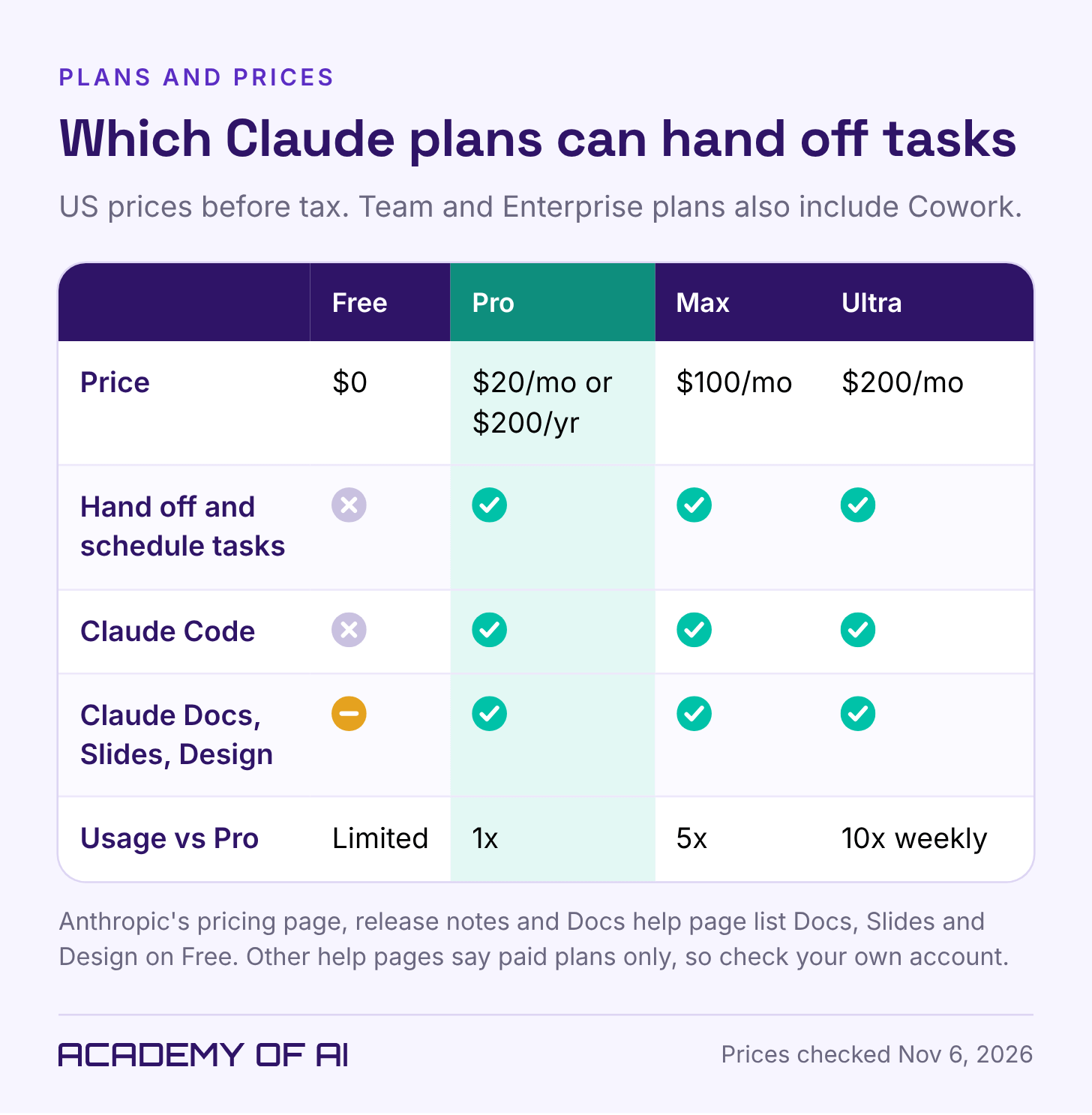
A paid plan. Pro is $20 a month or $200 a year, Max $100 a month and Ultra $200 a month in the US, before tax (Anthropic pricing, checked November 6, 2026). Team and Enterprise include it too.
Any Claude app for cloud tasks: a browser, Claude Desktop or the phone app.
Claude Desktop for folders on your computer. It needs macOS 13 or later (Install Claude Desktop) or Windows 10 version 2004 or later (Claude Desktop release notes). Computer use needs macOS 14 or later (release notes), so update first if you can. Claude Desktop for Linux is in beta, but Anthropic's requirements for local files list only macOS and Windows (Get started with Claude Cowork).
To be honest, I really wasn't even using the Claude desktop app. I was just using the web version, and I didn't realize how much I was limiting myself, so everything changed. I'm now using the desktop app on a Mac Studio, and it's so much better than using any of the web-based platforms.
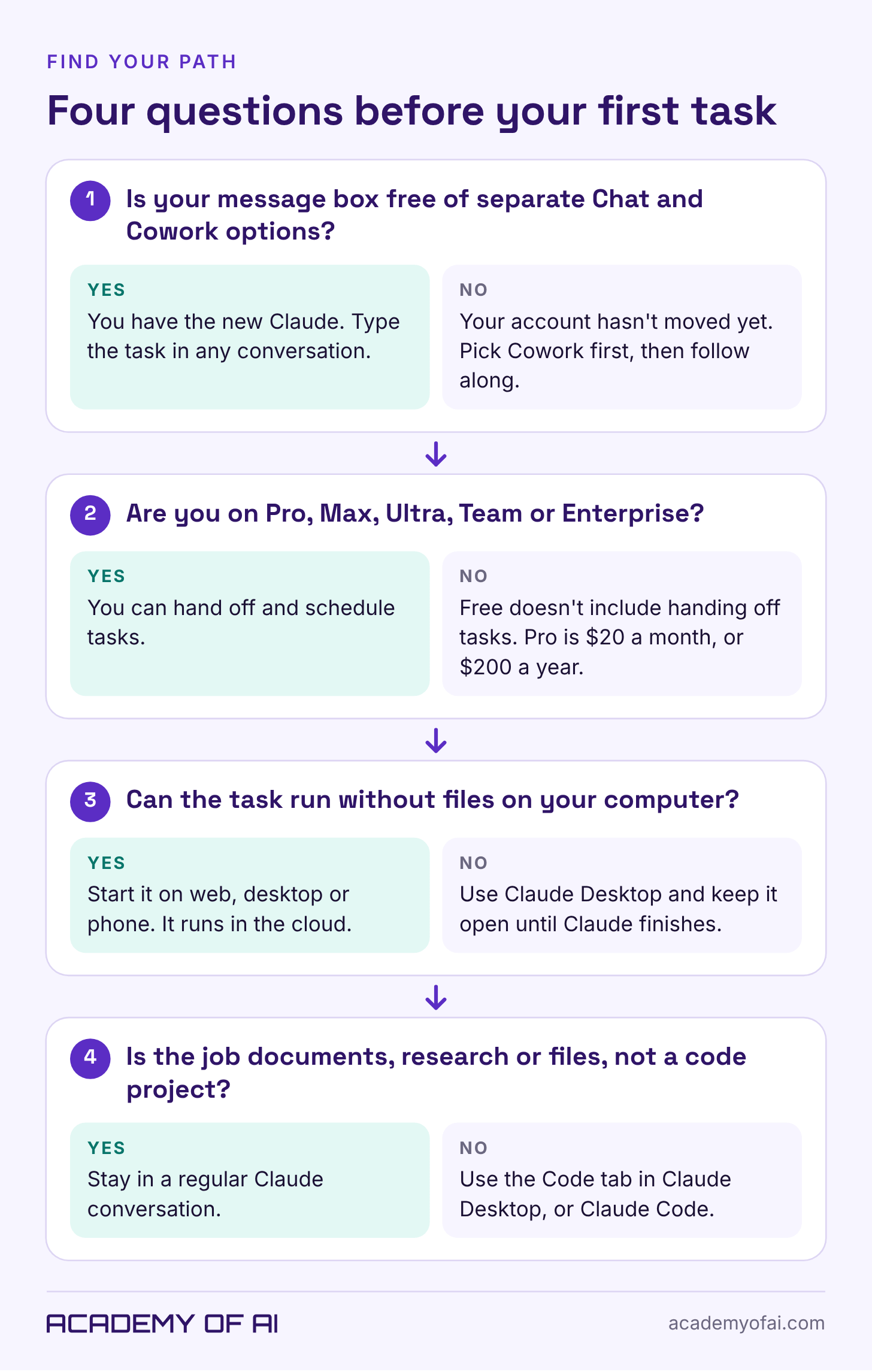
Accounts move to the new layout in stages, so two people on the same plan can see different screens. Answer these first:
Part 1: Hand Claude a Whole Task From Any Conversation
Step 1: Check Your Message Box for a Chat or Cowork Choice
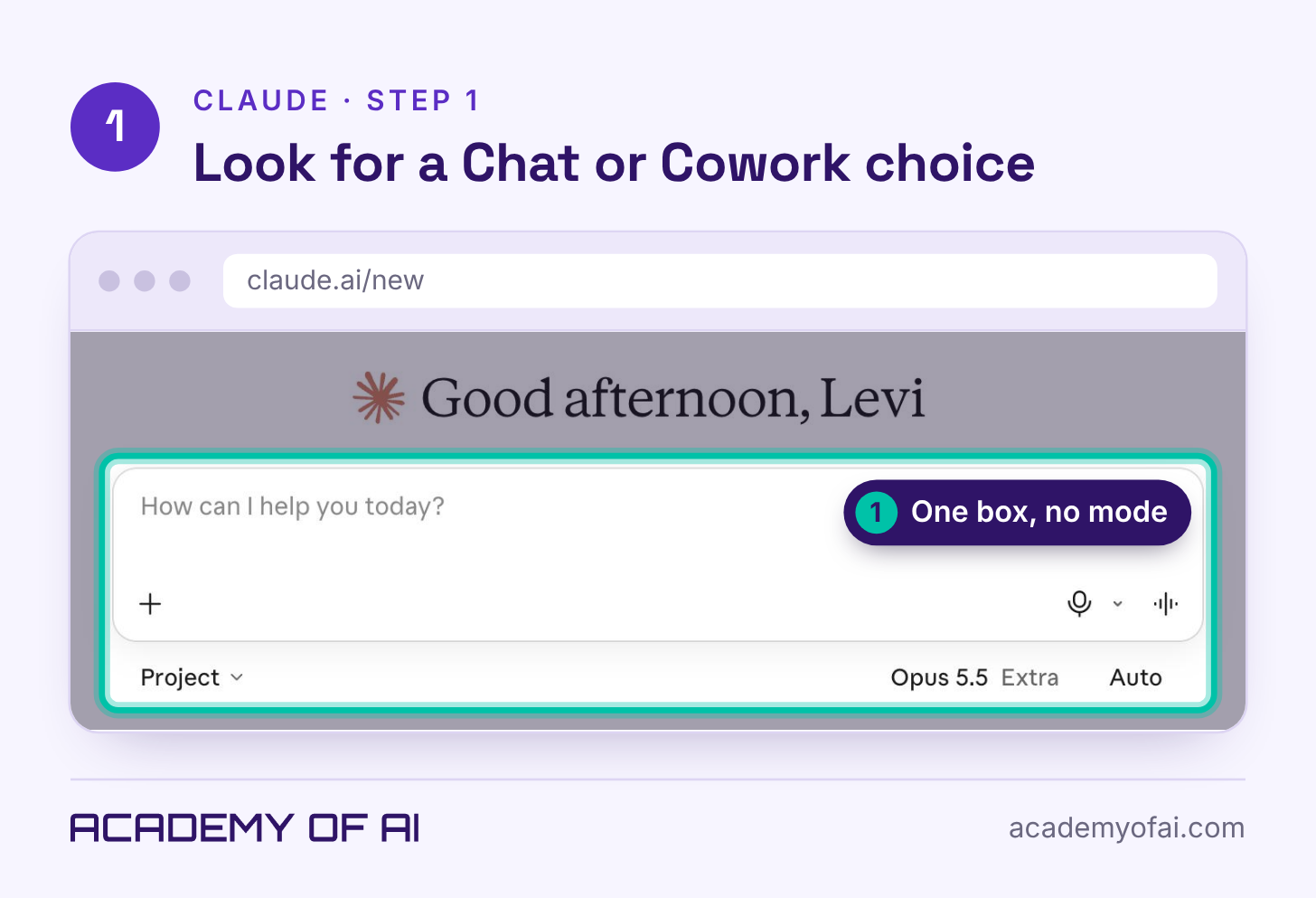
Open claude.ai and look under the message box. One box with no mode choice means you have the new Claude. Separate "Chat" and "Cowork" options mean your account hasn't moved yet, so pick Cowork and follow the same steps. On Team and Enterprise, an administrator may need to turn it on first.
Step 2: Describe the Outcome, the Format and the Inputs
Type the whole job, not a single question: the outcome, the format and the material Claude should use. The test task in this guide used these made-up workshop notes:
Turn my notes below into a one-page checklist for launching a small online workshop. Group the items by week, keep it under 250 words, and end with three questions I still need to answer.

Notes: workshop on Dec 10. Sign-up page live by Nov 20. Reminder email Dec 8. Need slides, a Zoom link and a replay plan. $25 ticket, cap of 40 people. Maybe ask a co-host?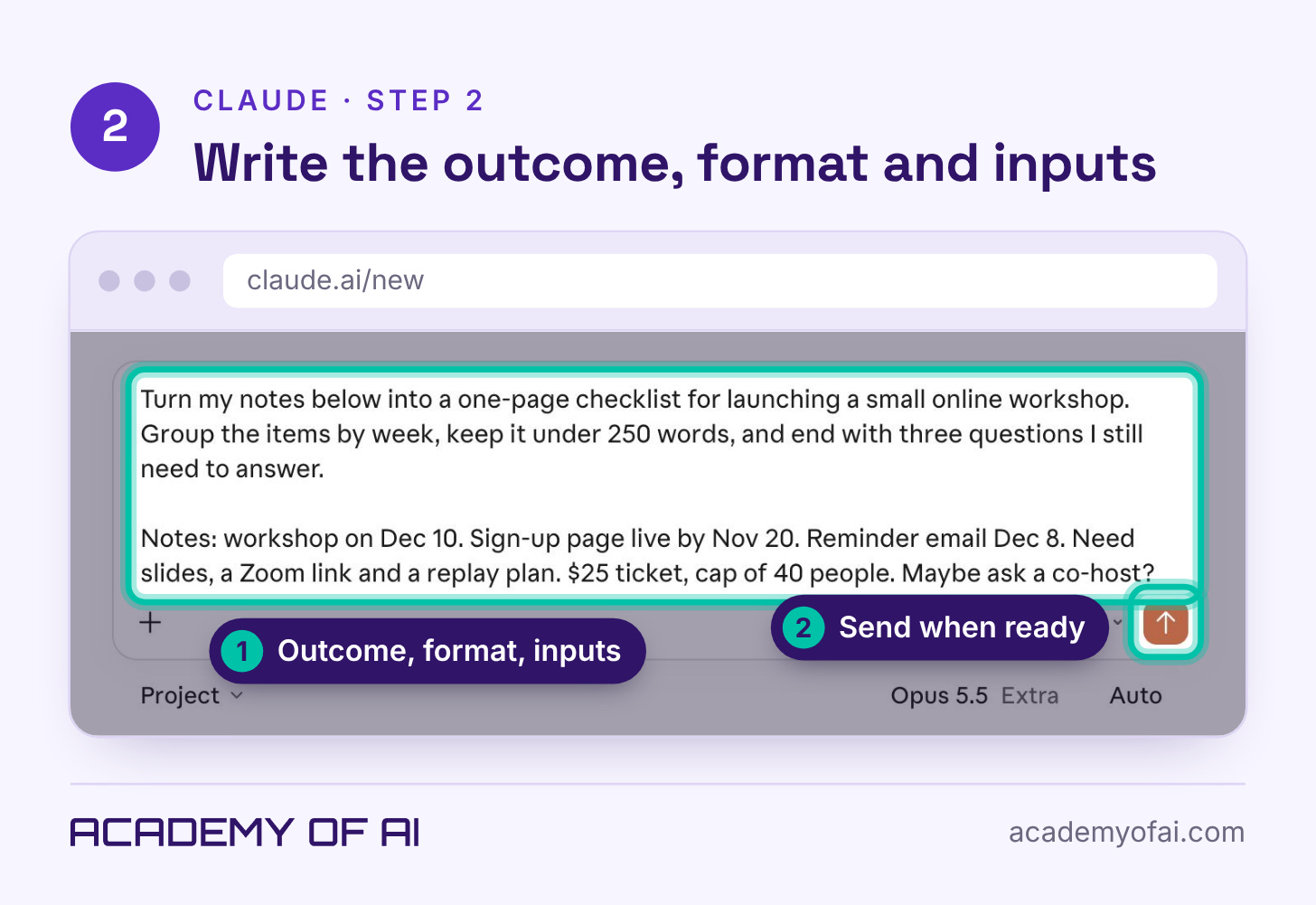
I usually give as many details as possible, but the one thing that I include in every message, every prompt, every chat is to ask questions. When Claude asks questions, that's how you get a really good prompt and a really good project started.
To build that in, end your task with a line like this:
Before you start, ask me any questions you need answered.Step 3: Choose How Often Claude Asks Before It Acts
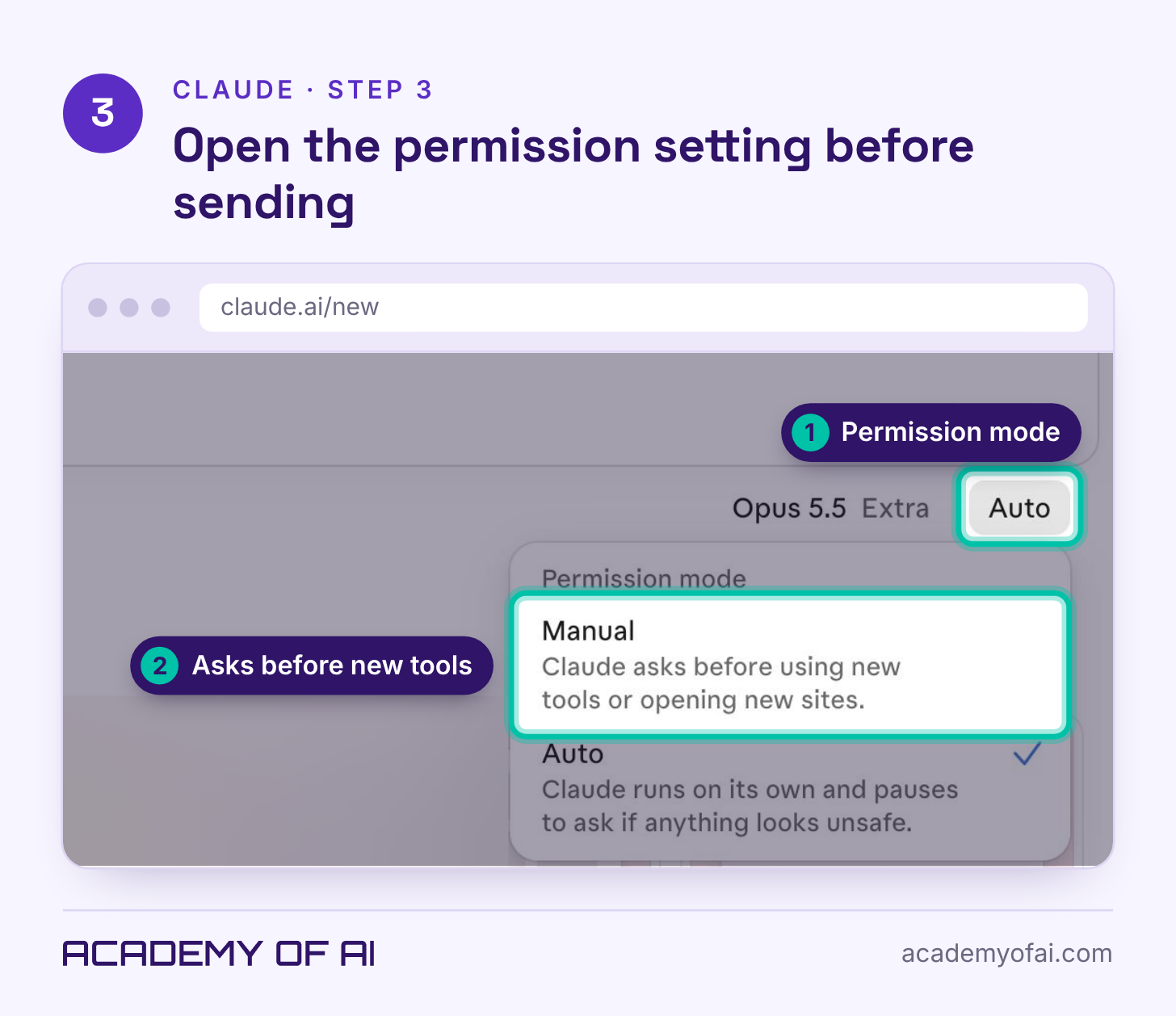
The permission control sits in the row under the message box and shows the mode you're in. Click it to switch. "Auto" lets Claude run on its own and pause to ask if anything looks unsafe, while "Manual" makes it ask before using a new tool or opening a new site. Auto is the default on Pro, Max, Ultra and Team, and Manual on Enterprise (Anthropic Help Center).
To be honest, at this point, most of the time I allow Claude to be set to Auto because it speeds everything up, and for the most part, everything is reversible. It does ask questions if it has any concerns. Most of the time, Claude has good judgment.
I absolutely let it keep working on a majority of projects. Sure, there are some projects that I'm going to manage really closely or ask it to not deploy something without me reviewing it. But for the most part, it's working in the background all the time, and it's gone really well.
Faster doesn't mean every action is reversible, though. A published change or a sent email can do damage before anyone spots a mistake. If you're new, start on Manual with a small task, and stay involved when Claude sends messages, spends money or changes files you can't replace. Manual's prompts don't replace reading Claude's steps.
Step 4: Read Claude's Steps Before You Use the File
Claude shows its progress as it works, and you can stop it or redirect it with a new message. When it finishes, open the steps before you trust the file. For the test prompt above, Claude made a Claude Doc called "Workshop launch checklist: Dec 10" without being asked for one.
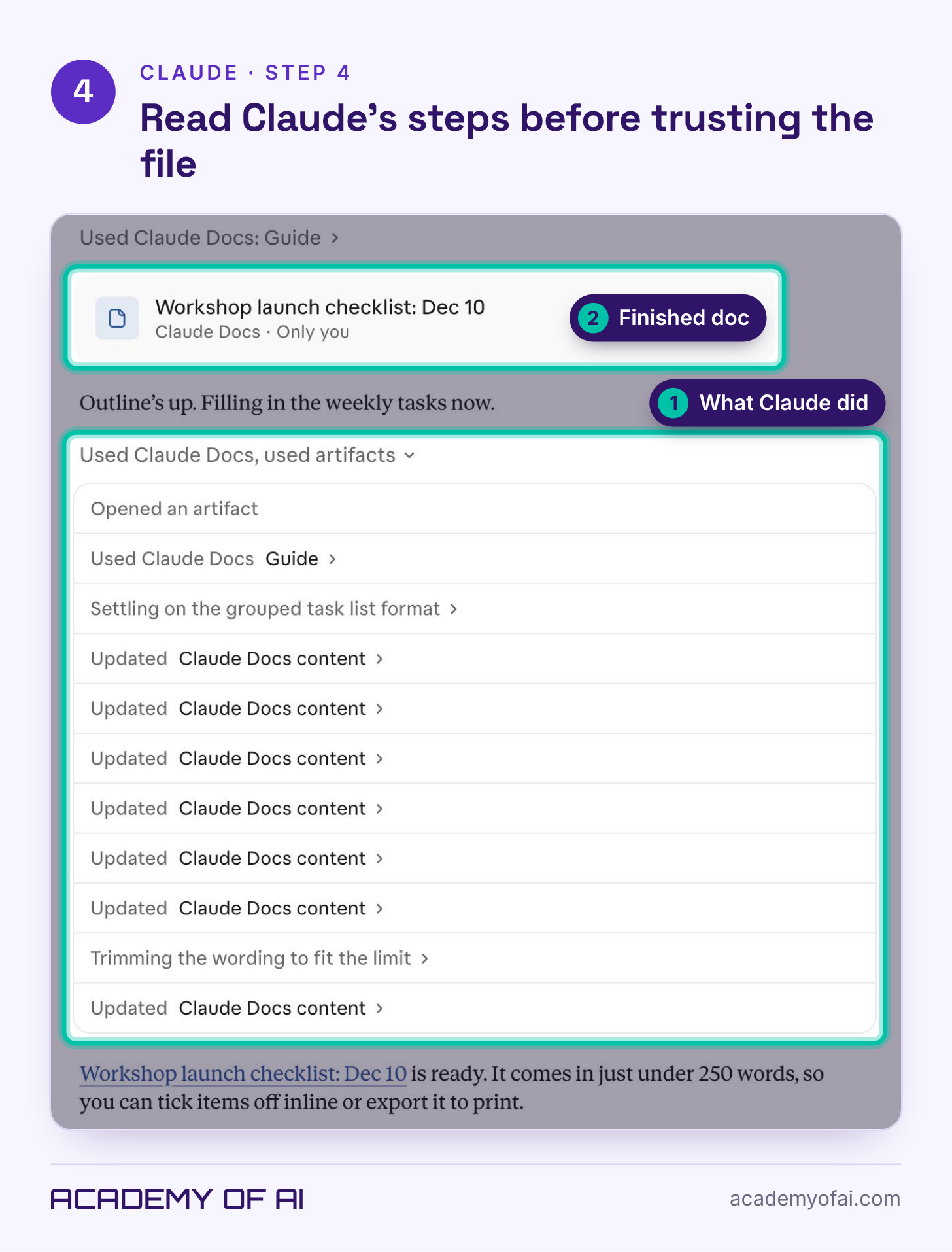
Everything, for the most part, that I have knowledge about, I absolutely check. Some things I'm not as well versed in, like coding, for example, so I have to trust it and take its word for it. But I read all of the logs and make sure that I'm following along so that I understand what it's doing, what it's accomplishing, and how.
An explanation from Claude isn't proof that code works. For website changes, test on a staging copy, keep a backup you can restore, and have a developer review anything that touches payments, logins or customer data.
Nothing has really gone wrong. There are mistakes that it will make, but for the most part, if you are paying attention to the output and you're working with it, the outcomes are really positive.
It made a mistake on a few articles it drafted for our editorial news site. It added sources at the bottom of every article like a Wikipedia page, and it was an easy fix. We corrected it, updated the project context, and it stopped doing that and instead did in-article links that open in a new window.
Part 2: Give Claude a Folder in Claude Desktop
Folders on your computer need Claude Desktop, and Claude reaches them only while the app is open (Anthropic Help Center).
Step 5: Make a Working Folder, Then Open Claude Desktop
Create a folder just for Claude and copy in only what the task needs. Anthropic's safety guide recommends that over broad access and urges caution with financial documents, credentials and personal records. Keep a separate copy of anything you couldn't easily replace.
I try to stay organized by project, so the folders are organized by project and have all of the relevant context there. I always download an MD file. I'll ask a chat like ChatGPT to download an MD file if we're working on similar things using Claude, so those are often in my folder.
An MD file is a plain-text Markdown file that any text editor can open.
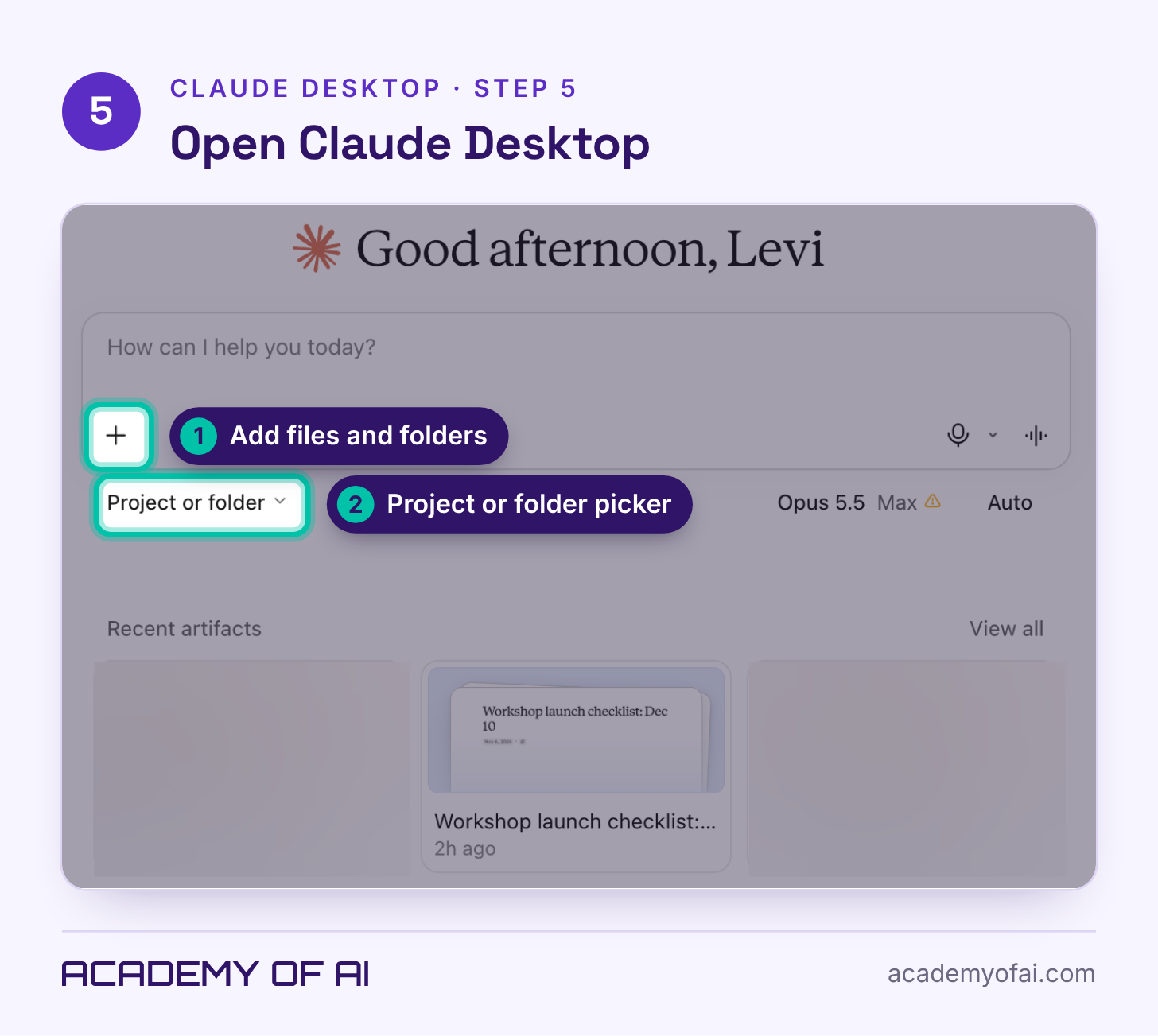
Step 6: Add the Folder From the Plus Menu
Click + in the message box, choose "Add folder" and pick your working folder. Claude can only read and write files in folders you've connected (Get started with Claude Cowork).
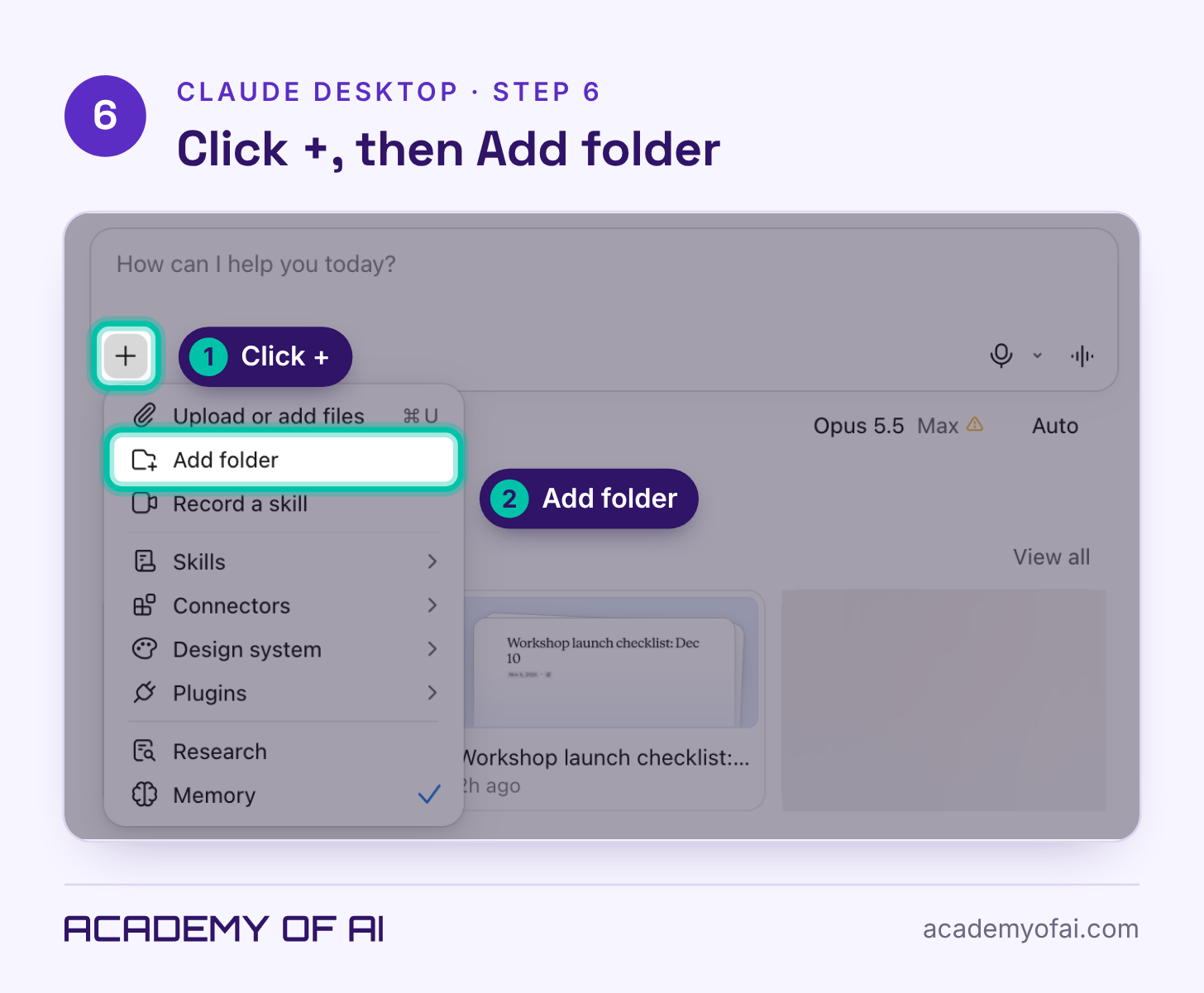
Step 7: Review Trusted Folders and the Storage Folder
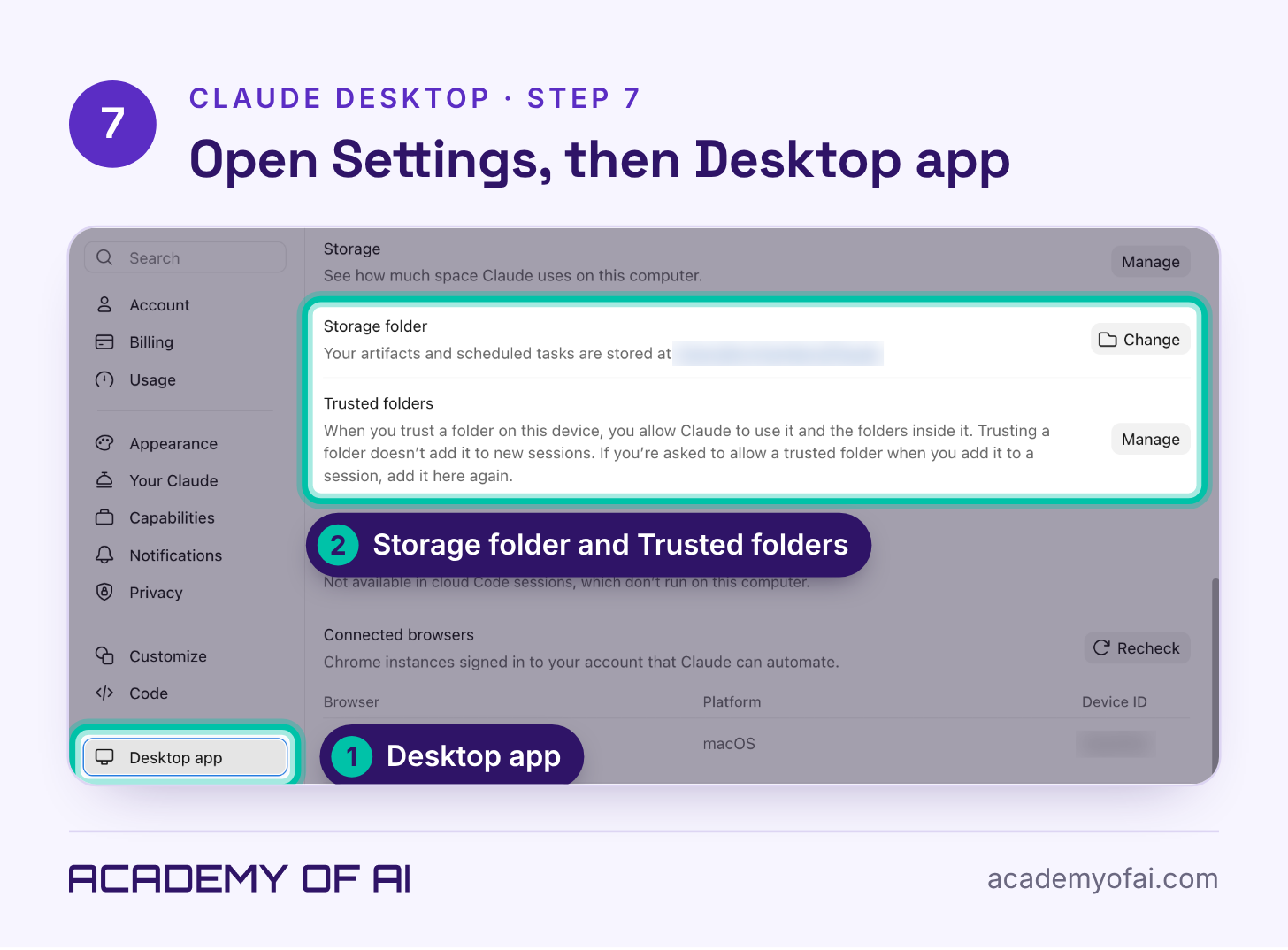
In Claude Desktop, open Settings and choose "Desktop app." "Trusted folders" lists every folder you've allowed (Anthropic Help Center), and "Manage" next to it lets you review them. Trusting a folder lets Claude use the folders inside it too, but it doesn't add the folder to new sessions on its own. "Storage folder" shows where your artifacts and scheduled tasks are saved.
Claude Desktop can also work in its own built-in browser or in your Chrome (Use the built-in browser). The built-in browser works only while Claude Desktop is open and online. Anything you sign in to there stays available to Claude in future sessions, so choose deliberately which sites and accounts it can reach.
What surprised me most was when Claude took control of my browser, and I could literally watch it working in its own browser, the exact way that a human being would work.
Part 3: Let Claude Keep Working After You Close the Laptop
Bigger tasks keep running in the cloud after you close the laptop or leave the page, and the result waits in the conversation. Tasks that need local files, the built-in browser or computer use still need Claude Desktop open, so check what the job depends on before you walk away (Anthropic Help Center).
Can you really walk away? I have let it do that, and eventually it runs into a task where it needs my approval to download an image or to access a site, and then it gets hung up. For the most part, I've not allowed it to keep working and have it work indefinitely without any stop gaps. Eventually, it needs my input and my support.
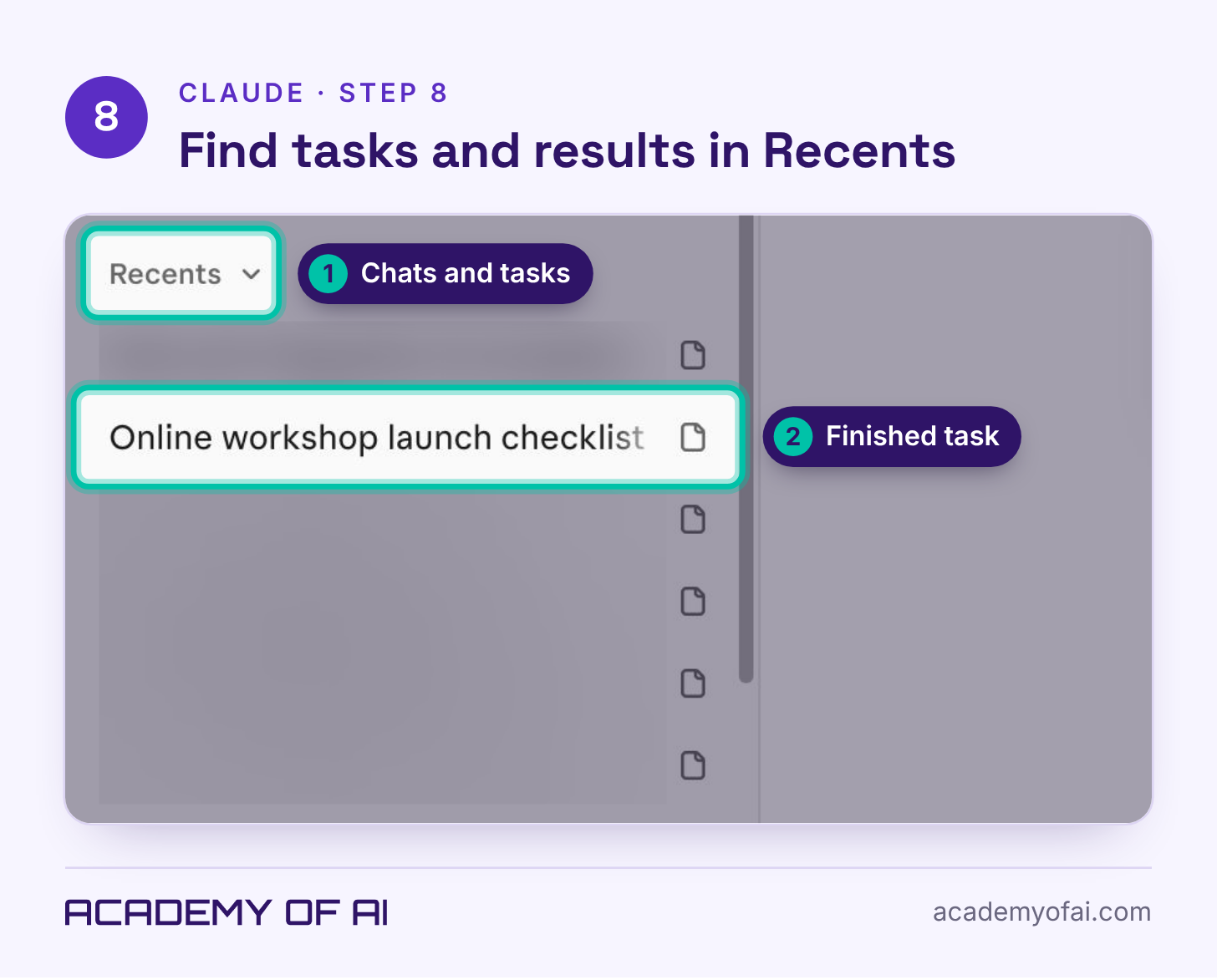
Step 8: Find Running and Finished Tasks in Recents
Quick chats and longer tasks share one list, Recents, in the sidebar. A blue dot marks an unread response, and a page icon means the conversation includes a document. Tasks you start at your desk also show up in the Claude phone app, so you can answer Claude's questions away from your desk (Anthropic Help Center).
Step 9: Set Up Recurring Work on the Scheduled Page
"Scheduled," in the sidebar, is where recurring tasks live. In the new Claude, you can also describe the task and how often it should run in any conversation, review the name, schedule and instructions Claude proposes, then click "Schedule." On the Scheduled page, click "New task" to start one, or check the "Templates" tab first. Each task can repeat hourly, daily, weekly or on weekdays, or run only when you start it. Scheduled tasks run remotely, so they keep going while your computer is asleep. A task that needs local files or apps runs only on your computer instead, and on Pro, Max and Ultra, tasks you scheduled before October 6 that run on your computer keep running there (Schedule recurring tasks in Claude Cowork).
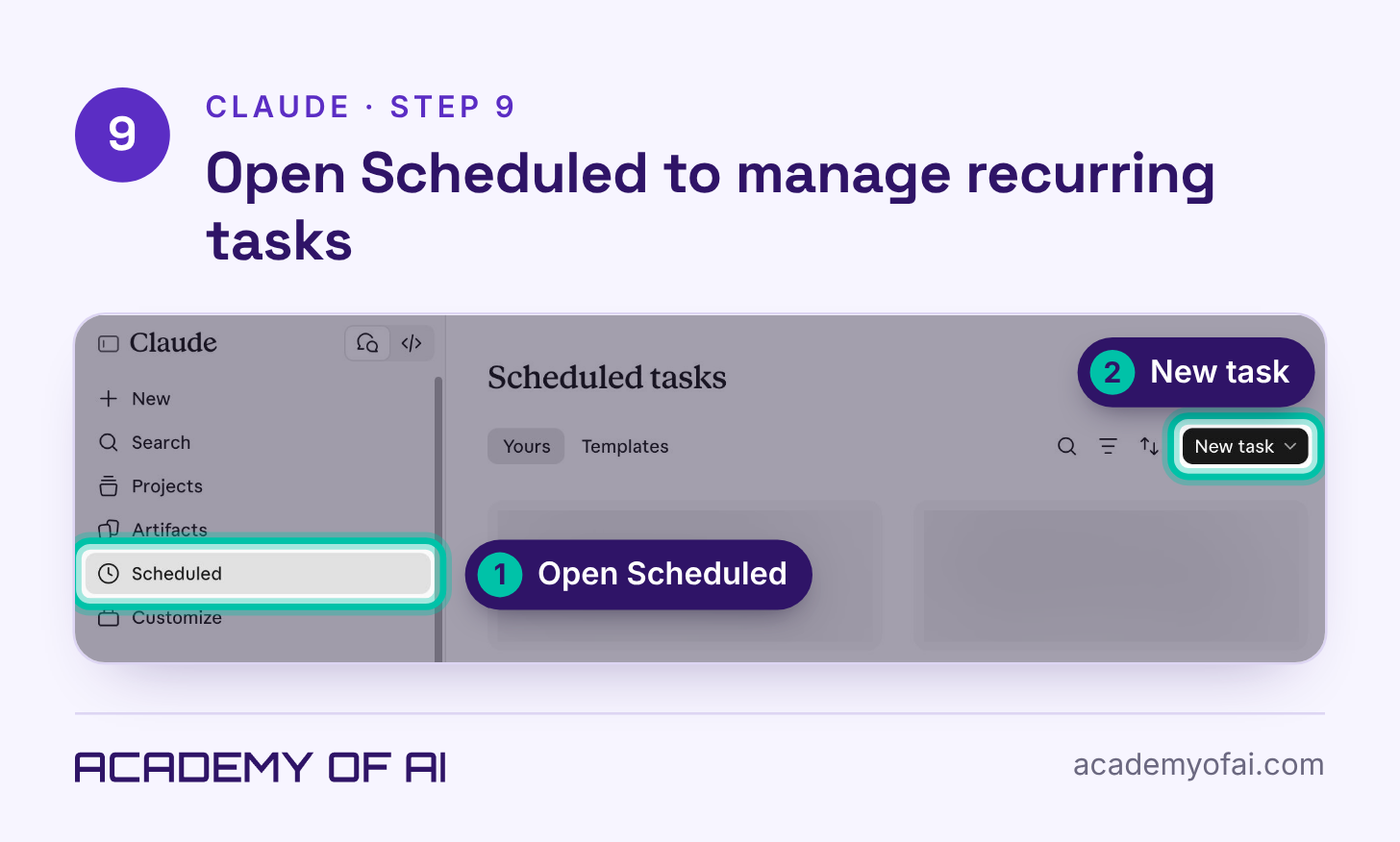
I run updates on a schedule. For example, our entertainment news brand did a lot of coverage of the 2026 election, and we set up scheduled checks every 15 minutes for Claude to check AP, waiting for the calls. When the calls occurred, it automatically updated the articles. Most of the articles were already live for SEO reasons, so that they'd have an early publishing date on the content as far as Google is concerned. It would update the content live and then clear the cache.
Through the web browser and the chat, I asked Claude to use the browser to check every 15 minutes. That ran inside a regular conversation, not on the Scheduled page, which tops out at hourly.
Those were so small and they were factual edits. It was literally the results of an election. There's nothing to check given they were coming directly from the AP calls. If you let Claude publish anything on its own, keep it that narrow: small, factual updates from a single source you trust. For your first automation, have Claude prepare the update for your review, and check the race, the candidate and whether a result is a projection or a final count.
In the morning, Claude scans websites looking for news stories that we can cover or publish. It also reaches out to politicians and celebrities with questions for original interviews. Then we do a review, and we start publishing the content. After that, it updates our Slack and sends all the content to our team so they can start promoting it on social media. I do review everything before it's deployed or sent.
Then we start pivoting to other brands from our editorial news brand to our business brand, The Monetizer, or to start working on optimizations on YouTube or whatever other projects that I have going on.
Part 4: Turn a Conversation Into a Doc, Deck or Design
Claude Docs, Slides and Design, all in beta, turn a conversation into something you can edit, share by link or export (Anthropic Help Center).
Step 10: Name the Format You Want, or Start With /docs
Say what you want built, like "make this a doc" or "turn this into a five-slide deck." You can also type /docs and click "Doc" in the menu that pops up (Get started with Claude Docs). Click it rather than pressing Enter, since other skills can sit above it in the list. Anthropic's help page also mentions an "Output" control in the message box, but it didn't appear on the account used for this guide.
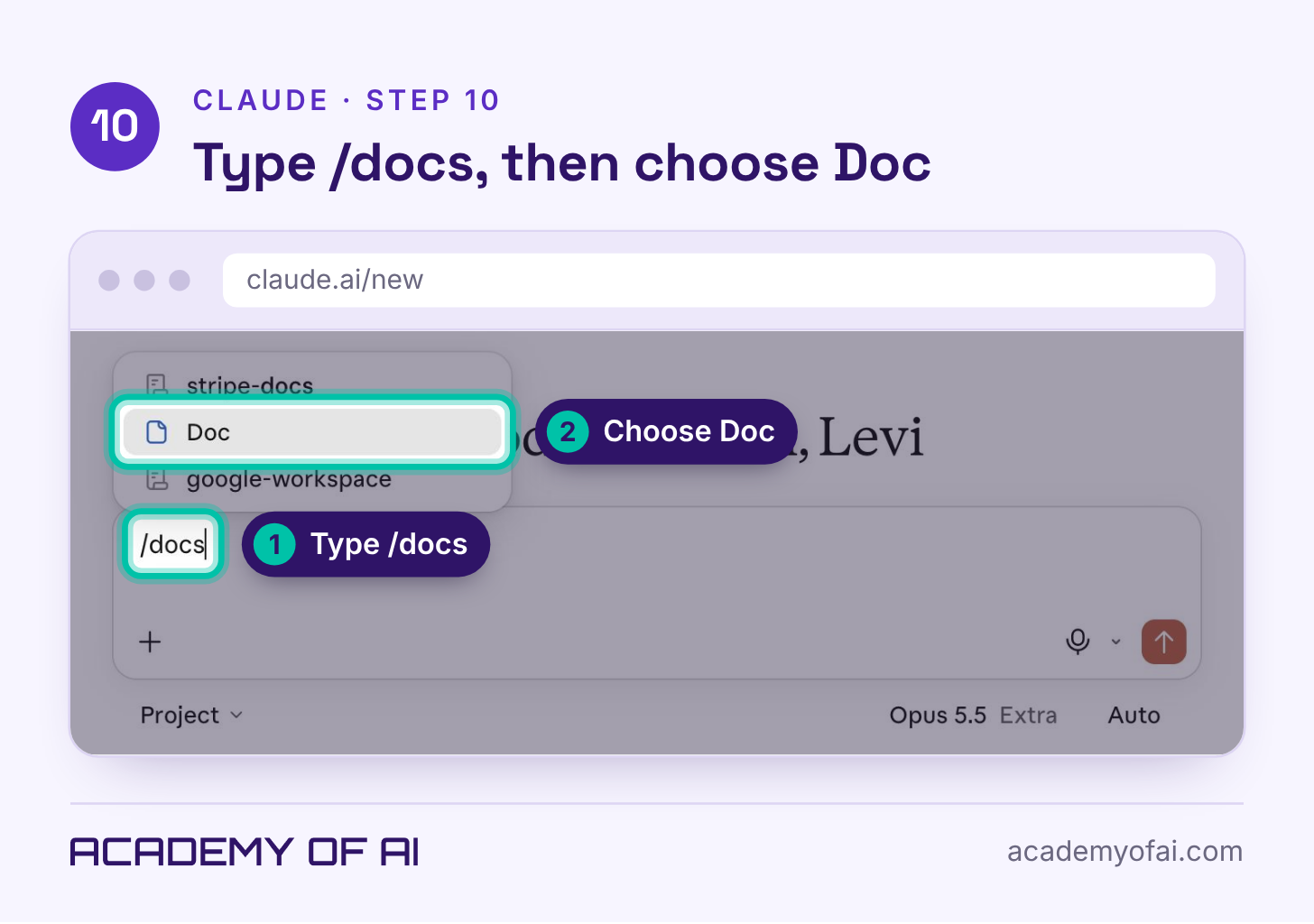
I use Docs anytime I need to take the context with me somewhere else or if I need to do a really deep dive. I also will request spreadsheets or things that will help me organize the content or the thoughts into a format that I can actually consume and understand.
I ask it for decks often as well when I've worked through a project and we're at the point where I know it can turn out a great deck or design. An example for that is an RFP we did for a streaming service's film that's getting an awards-season push. We did a lot of work with Claude, using all of its context for our brands, to help put together a campaign across social media and web to promote the title. We used Claude at the very end to create our proposal deck to go alongside the RFP response.
We look for concepts that are performing really well on social media. We draft our own versions, and then we ask Claude to help us perfect those, perfect the designs, and generate the content.
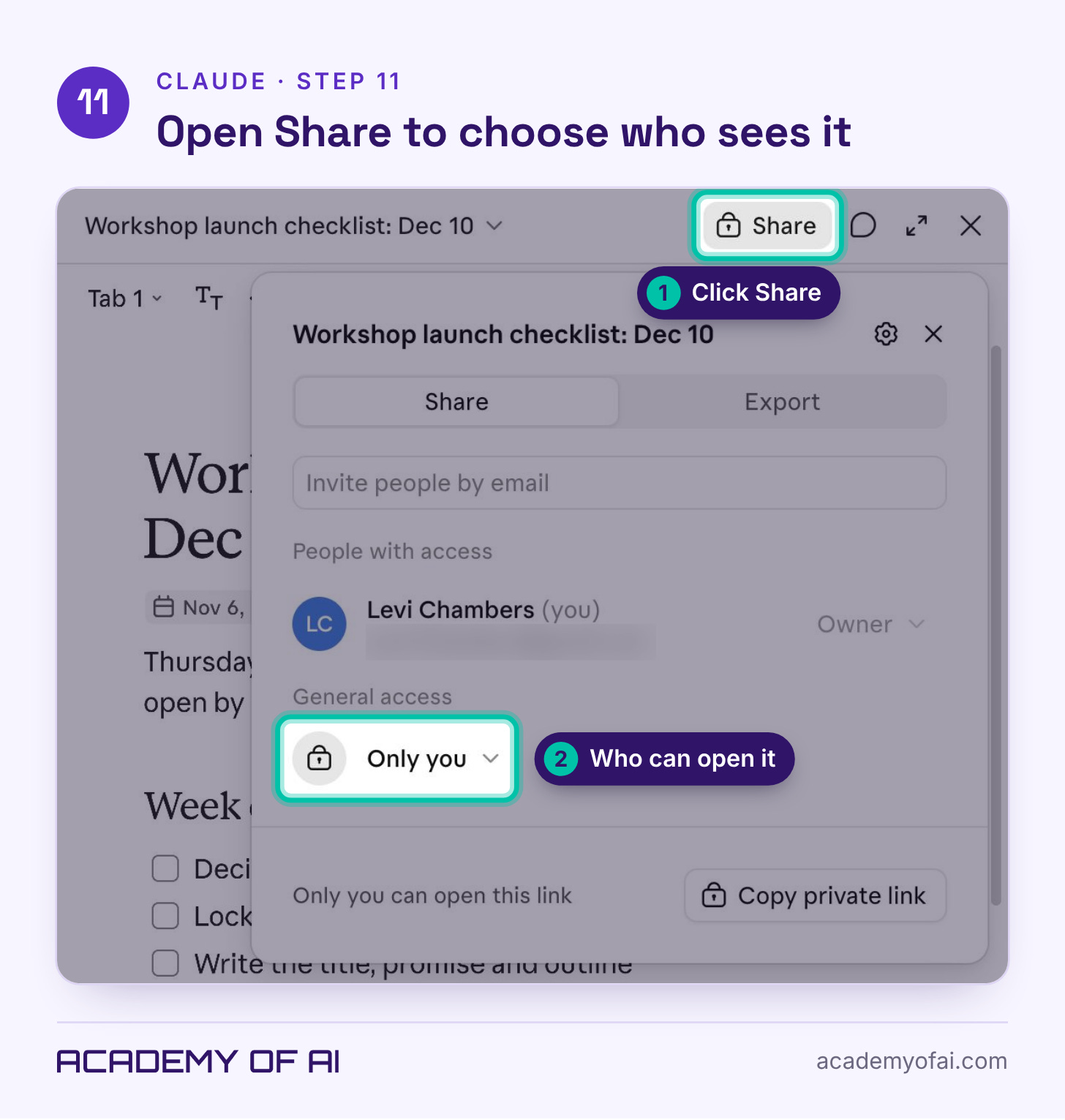
Step 11: Open Share and Decide Who Can See It
Docs start private, with General access showing "Only you." Click "Share." On Free, Pro, Max and Ultra, set General access to "Anyone with the link," which lets people view but not edit. On Team and Enterprise, you can invite specific people, a group or your whole organization, but not anyone outside it yet. Viewers can read the doc, and editors can also edit, comment on and export it. Anyone who opens a shared doc needs a Claude account (Get started with Claude Docs).
Part 5: Bring Your Old Cowork Setup Into the New Claude
If you used Cowork before your account moved to the new Claude, your old setup came with you. These three steps show where it lives now.
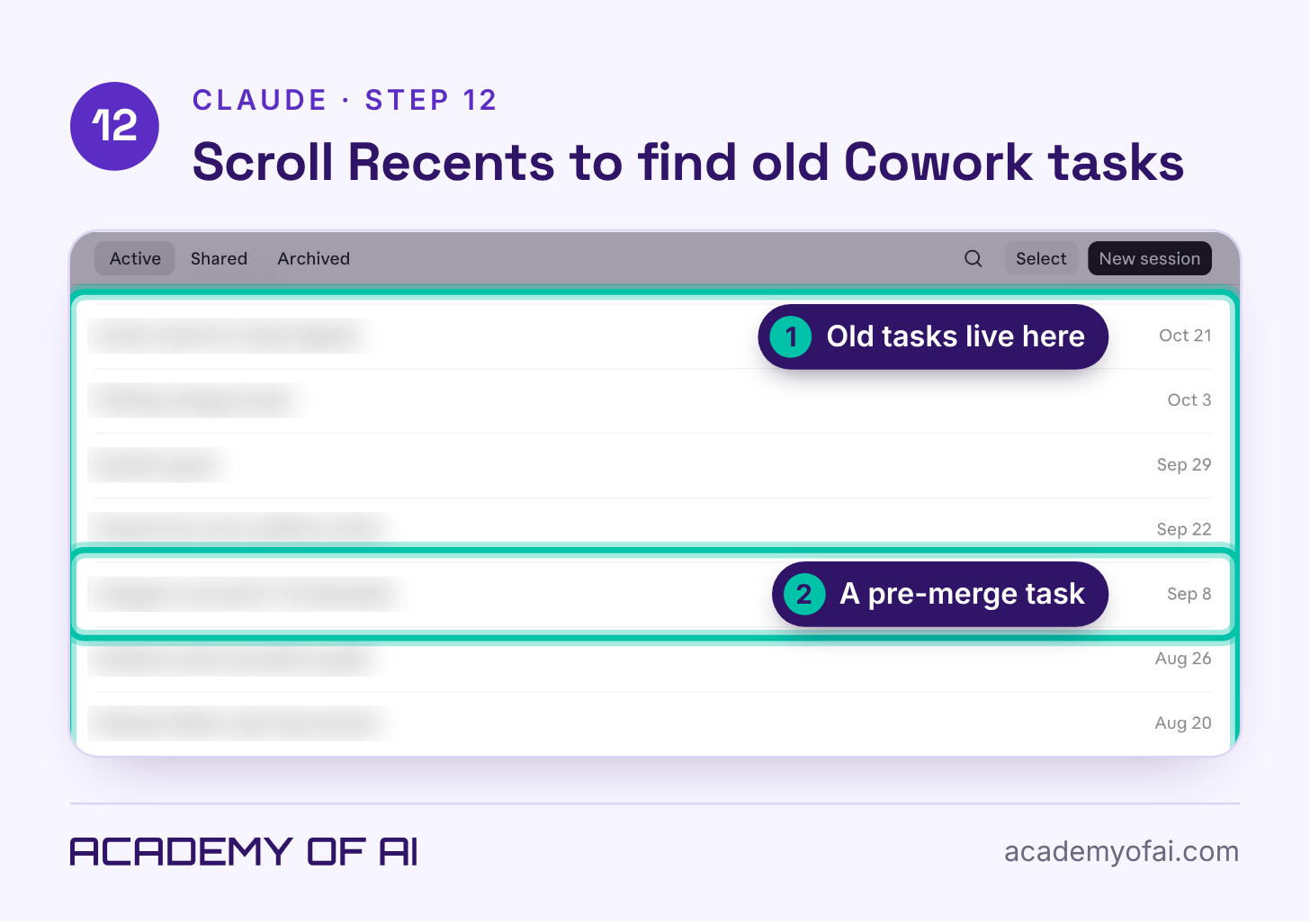
Step 12: Scroll Down for Cowork Tasks From Before the Merge
Old Cowork tasks sit in Recents with your chats, but search skips them for now (Anthropic Help Center). Click "View all" under Recents in the sidebar to open the full list, then scroll back to tasks from before your account moved, since old tasks carry no special badge. You can also open the project they belonged to.
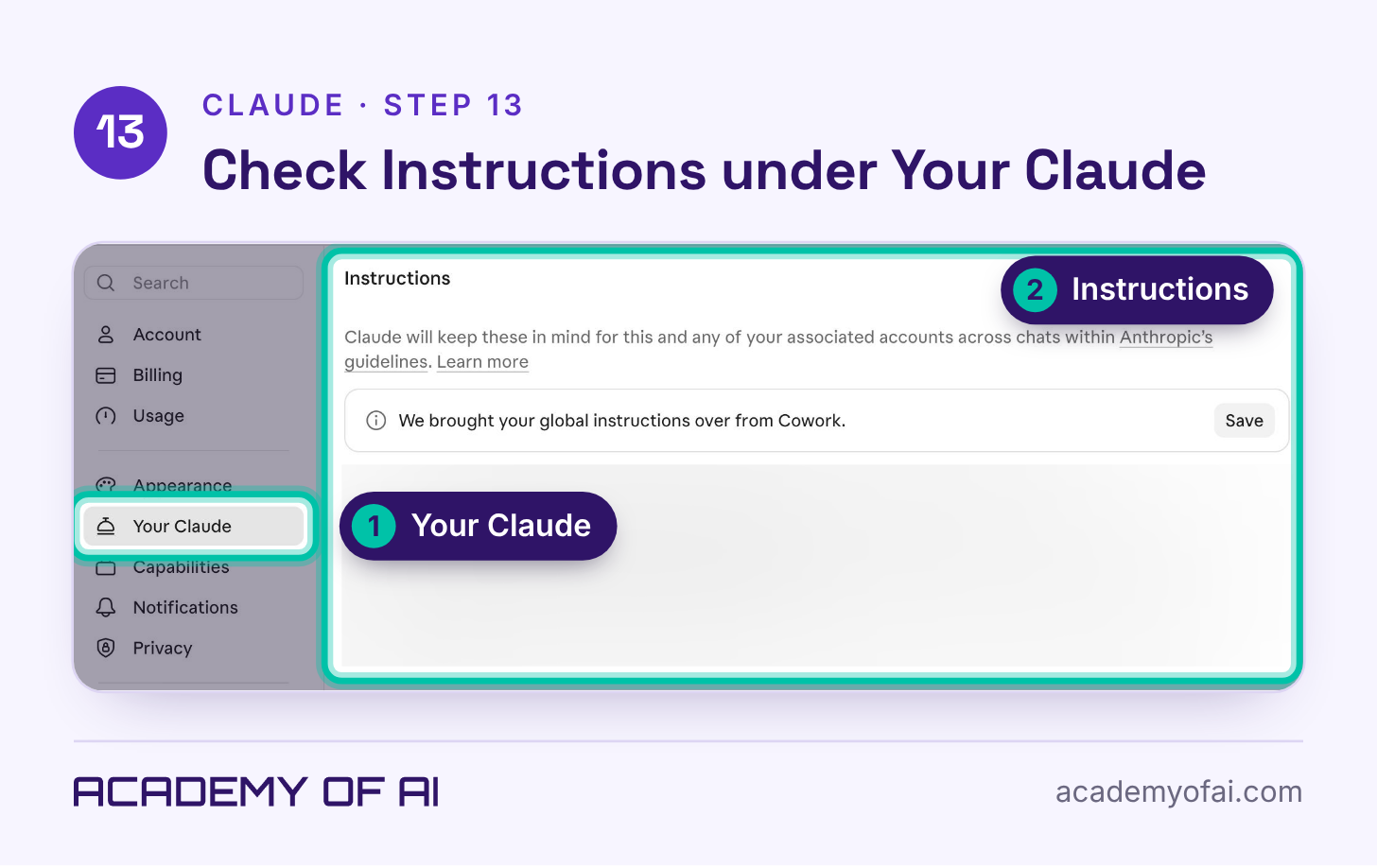
Step 13: Find Your Cowork Global Instructions in Settings
Cowork's Global instructions moved to Settings > Your Claude, or Settings > Account in the older Settings layout. Look for the section labeled "Instructions," which Anthropic's help page calls "Instructions for Claude." They now apply to every conversation (Anthropic Help Center). If yours came over, a note says "We brought your global instructions over from Cowork," next to a Save button. Read them, cut anything that only made sense for Cowork, and click Save once they read the way you want.
Step 14: Confirm Connectors, Skills and Plugins Under Customize
Connectors, skills and plugins carried over. Open "Customize" in the sidebar and use the Skills, Connectors and Plugins tabs at the top. On Connectors, a check mark in the Status column means it's connected, and a "Connect" button means it still needs you.
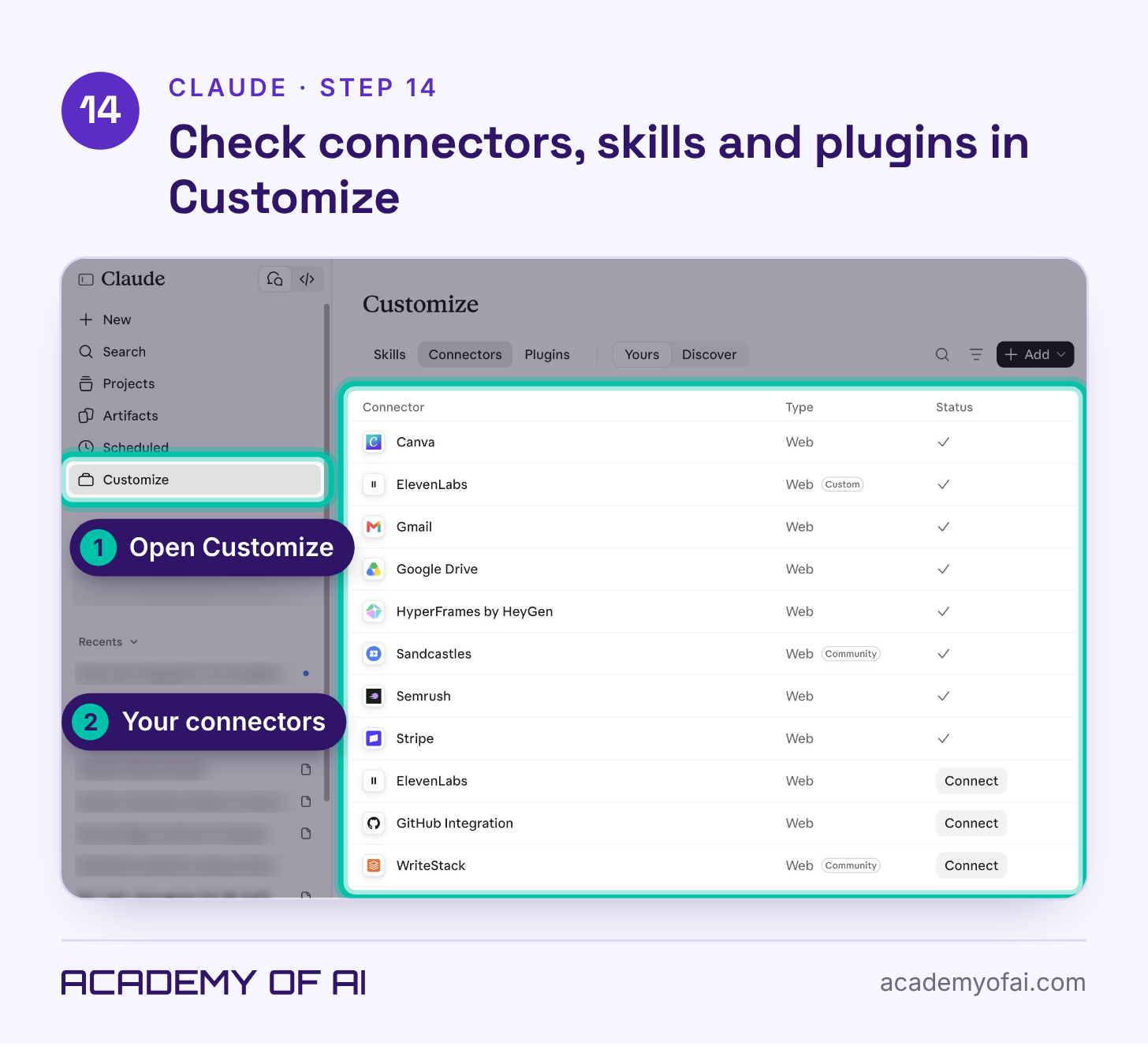
Today I connected a few more tools that I think Claude will be able to use. I'm constantly changing my connectors, my skills, and adding context.
Six Things to Check After Claude Finishes a Task
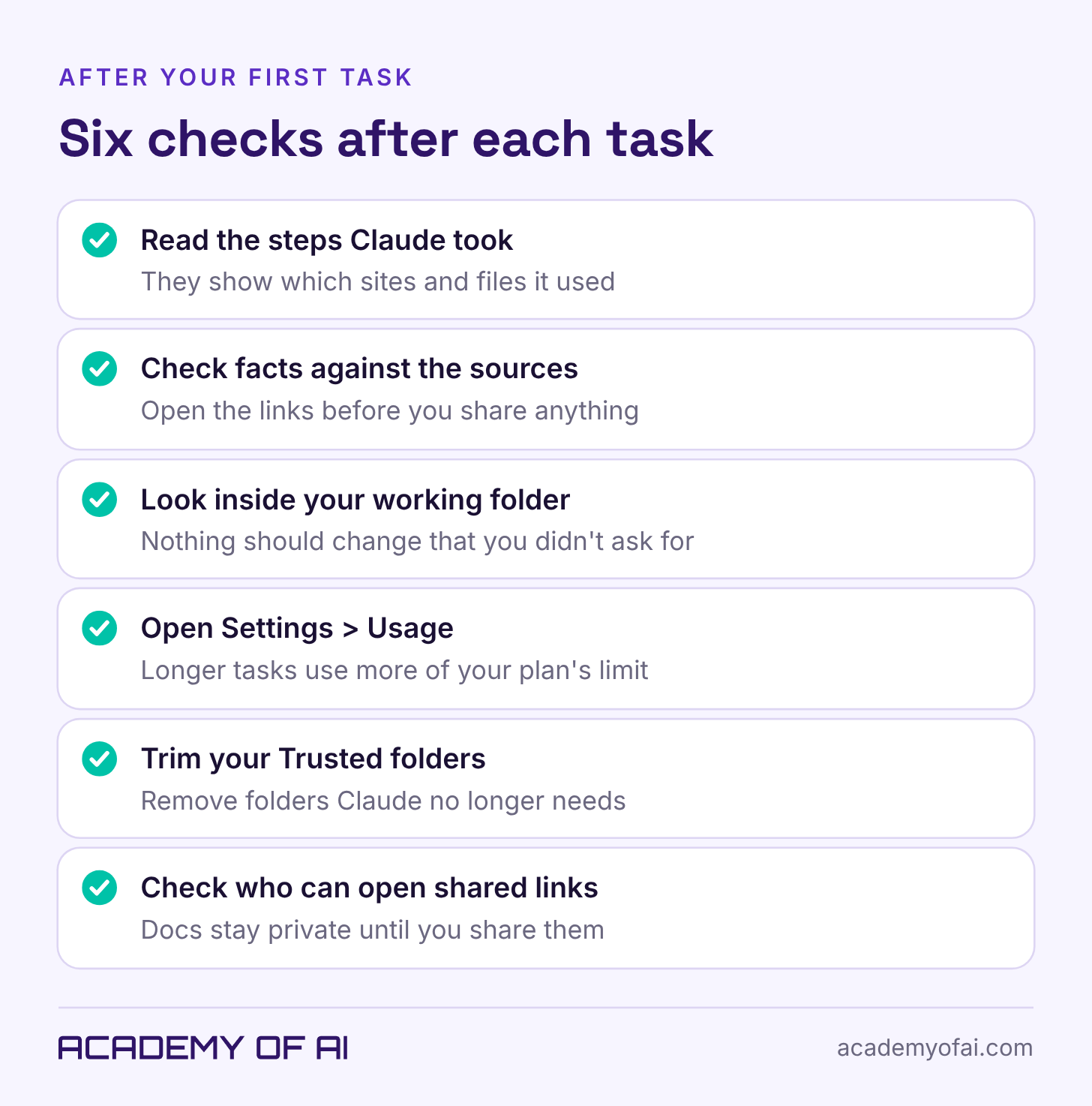
After each task, run these six checks:
Read the steps Claude took.
Check facts against the sources.
Look inside your working folder.
Open Settings, then Usage, to check your remaining allowance.
Trim your Trusted folders.
Check who can open any shared links.
Longer tasks usually use more of your plan's limit than quick questions (Anthropic Help Center). The Usage page shows your overall limits, so it may not show what one task cost. If you keep running out, read how to stop hitting Claude's usage limits.
Cowork vs Claude Code vs Regular Chat: What Each Is For
Regular chat and Cowork are now the same conversation. Claude Code is still separate. It's Anthropic's coding agent: it reads a codebase, edits files and runs commands. It works in the terminal, code editors, the Code tab in Claude Desktop and the browser at claude.ai/code (Claude Code docs). In the Claude app, the Claude and Code switch at the top of the sidebar flips between the two.
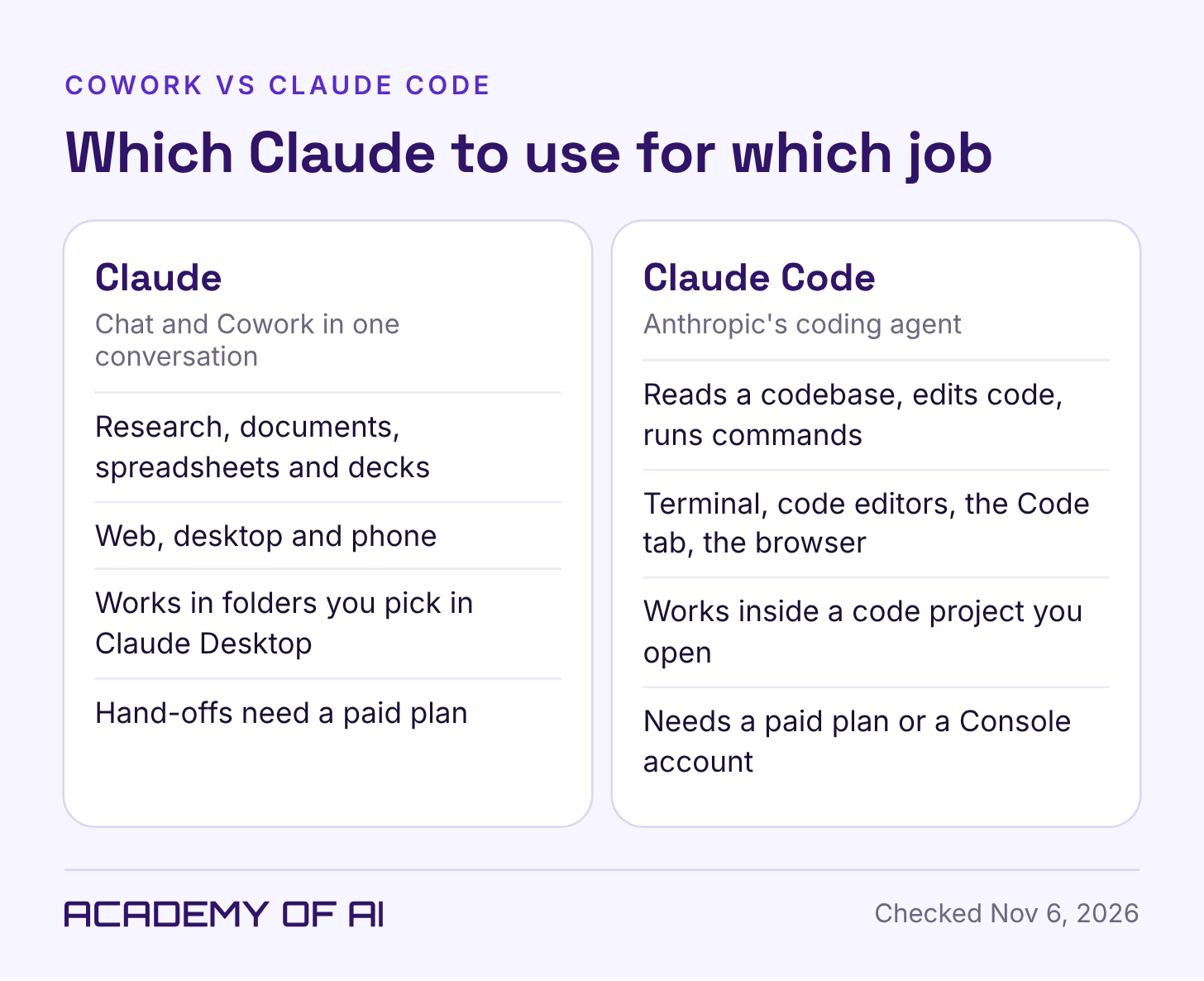
Choose Claude Code when the job centers on a codebase, debugging or running development commands. For research, documents and everyday business tasks, start in regular Claude.
I pick Claude Code over a regular conversation when I know that it needs to do heavy lifting. Basically, when I know it needs to be able to respond with action like a human.
For the coding side, see Claude Code pricing and Claude Code on the web.
Fixes for a Missing Cowork Option, Windows Errors and Memory
I Don't See Cowork Anymore
That usually means your account has the new Claude, so describe the task in any conversation. Free plans don't include hand-offs (Anthropic pricing). On Team (in beta) and Enterprise, it's available where "Chat and Cowork unified" is turned on (Anthropic Help Center), and on Enterprise an owner controls that setting (Anthropic Help Center).
Cowork Tab Missing on Windows
The new Claude has no Cowork tab on any computer, so a missing tab alone is no reason to reinstall. If your app still shows the old layout with only Chat and Code and Cowork won't start, work through these in order. On a work computer, bring in your IT team.
Reinstall with admin rights. Without them, "Cowork on desktop will not be available" (Deploy Claude Desktop for Windows).
Turn on Virtual Machine Platform in an administrator PowerShell window, then restart:
Enable-WindowsOptionalFeature -Online -FeatureName VirtualMachinePlatform -All -NoRestartTurn on virtualization in your computer's BIOS or UEFI settings.
Restart instead of shutting down, since Fast Startup can leave virtualization off.
Install the latest Windows update. KB5129195, KB5129242 and KB5129236 fix a September 8 Windows update that stopped Claude's workspace from reaching your files (Claude Desktop release notes).
Check the hypervisor setting if you also use VMware or VirtualBox. The hypervisor is the part of Windows that runs virtual machines. In an administrator PowerShell window, run bcdedit and check that "hypervisorlaunchtype" reads "Auto." If it doesn't, run this command, then restart (Deploy Claude Desktop for Windows):
bcdedit /set hypervisorlaunchtype auto"VM service not running" can mean an older .exe install or a stopped background service. Update Claude Desktop, since newer versions restart that service on their own (Claude Desktop release notes), or reinstall from claude.com/download. "EXDEV: cross-device link not permitted" means the download for Cowork's workspace crossed from one drive to another, for example because storage moved off C:\ or your AppData folder is redirected to a network share. Set storage back to C:\, uninstall and reinstall Cowork, and update Claude Desktop (Claude Cowork in the cloud).
Does Cowork Remember Things Between Sessions and Devices?
Cloud tasks can use what Claude remembers from your chats (Claude Cowork in the cloud). Memory from tasks that ran only on your computer stays with those tasks, and a task you start at your desk shows up in the Claude phone app too (Anthropic Help Center). For work you return to, keep the important context in a project instead of assuming Claude remembers every detail. Our Claude project setup guide walks through it.
Cowork Price, Safety, Phone and Dispatch Questions, Answered
Is Claude Cowork Free?
No. Hand-offs and scheduled tasks come with Pro, Max and Ultra, plus Team and Enterprise (Anthropic pricing, checked November 6, 2026). Pro, at $20 a month or $200 a year, is the cheapest way in. Free still includes chat, web search, file creation and memory. Anthropic's pricing page lists Docs, Slides and Design on Free too, but some help pages say paid plans only.
Is It Safe to Give Claude Access to My Files?
It's safer when you limit what Claude can reach. Anthropic recommends a dedicated working folder over broad access and urges caution with financial documents, credentials and personal records. It also warns about prompt injection, where hidden instructions in a page or file try to steer Claude (Use Claude Cowork safely). The same guide notes that local files Claude opens through the desktop app are processed on Anthropic's servers, and that computer use skips the permission checks that gate Claude's other tools.
For the most part, I give Claude access to anything that I am working on so that it has full context, and I think it needs that in order to produce a great outcome.
Can I Use Cowork on the Web or My Phone?
Yes. Cowork works on the web and in the Claude phone app on Pro, Max, Ultra and Team, with Team in beta, and on Enterprise once an owner turns it on (Claude Cowork in the cloud). Local files, the built-in browser and computer use need Claude Desktop open (Anthropic Help Center).
What Happened to Dispatch?
Dispatch, Cowork's phone-to-desktop thread, isn't available to new users, and existing users can keep it for now (Anthropic Help Center). You can still start a task from the Claude phone app, and Claude keeps working on it in the cloud.
Can I Bring Back the Separate Cowork Mode?
No. Once your account has the new experience, the separate Chat and Cowork options don't come back (Anthropic Help Center).
Give Claude One Low-Stakes Task This Week
Honestly, play around with it a little bit. Test it out. Don't let it do anything that will ruin something, but a good option is connecting it to your Gmail account and letting it do some digging or some reading, or helping you respond to some emails. I think that's a great way to get the hang of it and start learning how Cowork works.
Who should skip it? Literally no one. If you are not using it, you need to be using it right now because I think this is the future of productivity and of professional work. If you're not using it, get on it now.
What do I miss about the separate Cowork? Literally nothing. The only thing I miss is how it was before I had the knowledge that Cowork could help me tackle literally hundreds of tasks a day if I'm really organized. I feel like I am getting a little bit of AI fry, where my brain just cannot process the amount of projects that I'm tackling.
At the moment, I'm working through it because I am so productive with Cowork that I have a huge backlog of tasks that I need to get done. It is helping me chip away at all of those and catch me up on years of work.
When you really think about it, years of issues have plagued our websites and our social media. We're able to tackle those now, even though there's still a long list, and it does take time to do it because we're doing it together. We're not just handing it over to Cowork and saying, "Here, fix all this." Still, there's so much to get done.
Keep reading on Academy of AI
